
Quick Start
MaxProtocol is a platform for secure corporate access based on the Zero Trust Network Access (ZTNA) concept. It allows you to create isolated virtual networks, manage employee access to corporate resources, and control traffic using flexible firewall rules.
After your first login, you will see the Home page with a step-by-step setup guide.
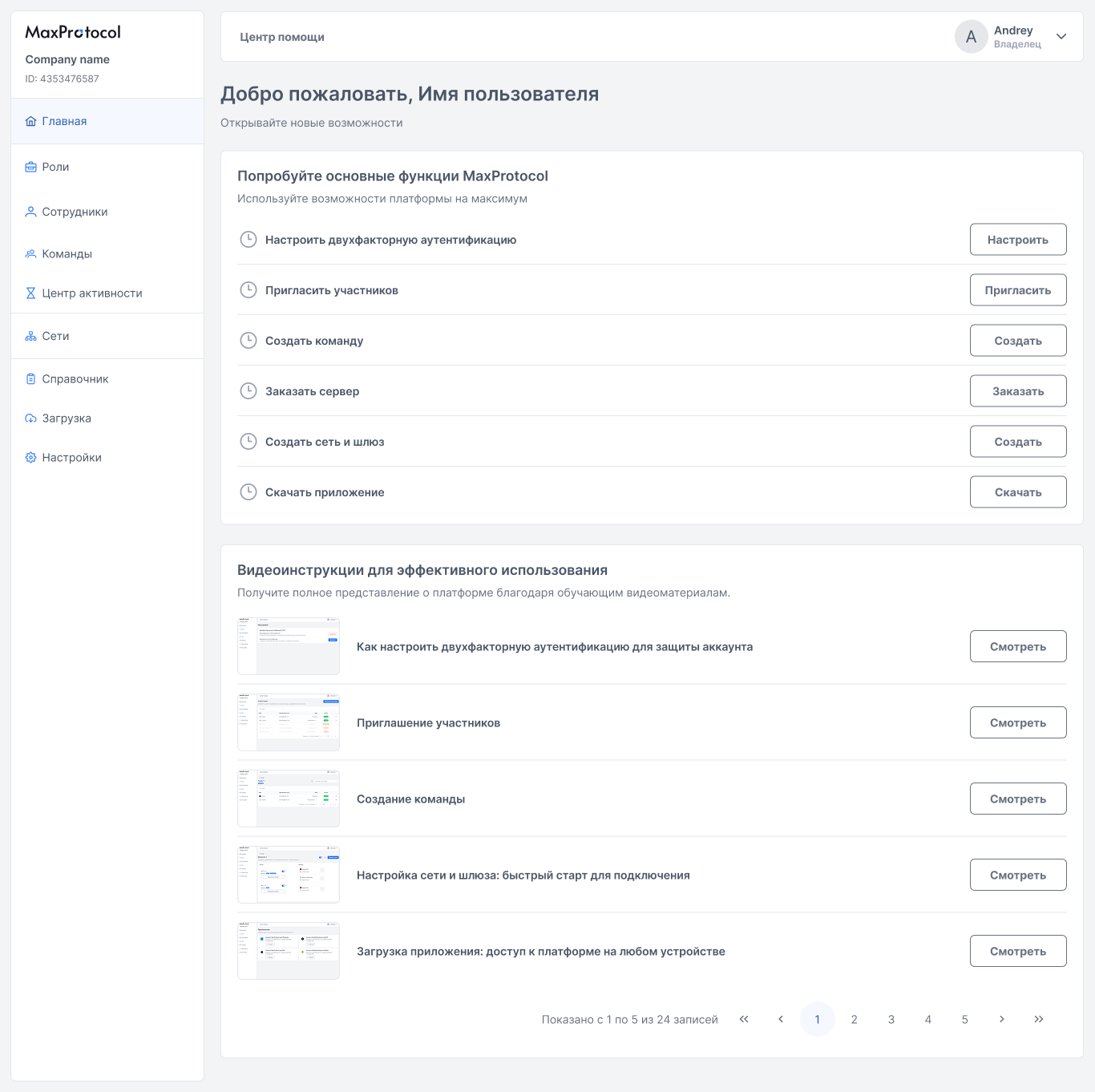
Step 1. Set Up Multi-Factor Authentication
Protect your account by enabling an additional verification method at login.
- Go to Settings in the left menu.
- In the Multi-Factor Authentication (MFA) block, choose a method and click Enable:
- Email authentication — OTP code sent to your email (enabled by default).
- Authenticator app — TOTP code generated in a mobile app.
See also: Password Authentication
Step 2. Invite Members
Add your organization's employees to the platform.
- Go to the Members section.
- Click Invite Members.
- Enter employee email addresses and click Invite.
Invited members will receive an email with a registration link. The invitation is valid for 24 hours.
See also: Members
Step 3. Create a Team
Teams are groups of employees that are assigned networks and access rules. Use teams to manage access for a group of users at once.
- Go to the Teams section.
- Click Create Team.
- Enter a team name, add members, and click Create Team.
See also: Teams
TIP
All employees are automatically added to the system team All Members. Create separate teams to differentiate access — for example, Developers, Warsaw Office.
Step 4. Create a Network and Gateway
A network is an isolated virtual environment for secure access to resources.
- Go to the Networks section.
- Click Create Network.
- Fill in the form:
- Network name — a descriptive name (e.g.,
Office Warsaw). - Gateway region — select the geographic deployment region.
- Subnet — set an IP range or leave empty for automatic selection.
- Assign a team — specify who gets access to the network.
- Network name — a descriptive name (e.g.,
- Click Create Network.
After creation, the network enters Setup status (~10 minutes), then automatically becomes Active. The gateway in the selected region is deployed automatically.
See also: Create a Network · Regions and Gateways
Step 5. Connect Resources via Tunnel
Once the network is active, connect your corporate servers and resources through a tunnel connection.
- On the network page, click
⋯on the gateway card → Add Tunnel. - Choose the connector type:
- OpenVPN XOR Tunnel — secure VPN with traffic obfuscation.
- Direct Connection — direct connection via SSH or HTTPS.
- Follow the setup instructions for the chosen connector.
Step 6. Download the Application
Install the MaxProtocol agent on employee devices to connect to the corporate network.
- Go to the Downloads section in the left menu.
- Choose a platform and installation method:
| Platform | Installation options |
|---|---|
| Windows | Microsoft Store, .exe |
| macOS | App Store, .dmg |
| iOS | App Store |
| Android | Google Play, .apk |
See also: Download and Install
What's Next?
After completing the basic setup, we recommend:
- Configure firewall rules — control who has access to which resources.
- Build a resource Directory — add IP addresses and subnets for use in firewall rules.
- Assign roles to members — differentiate administrative permissions.
- Set up Private DNS — connect internal DNS servers to the network.