
Regions and Gateways
A region defines the geographic location of a network node. A gateway is the server in that region through which tunnel traffic passes. Currently a network holds one region, and a region holds one gateway.
Network Page Structure
The network page displays the layout: Region → Gateway → Tunnels. Elements are connected by dashed arrows reflecting the connection hierarchy.
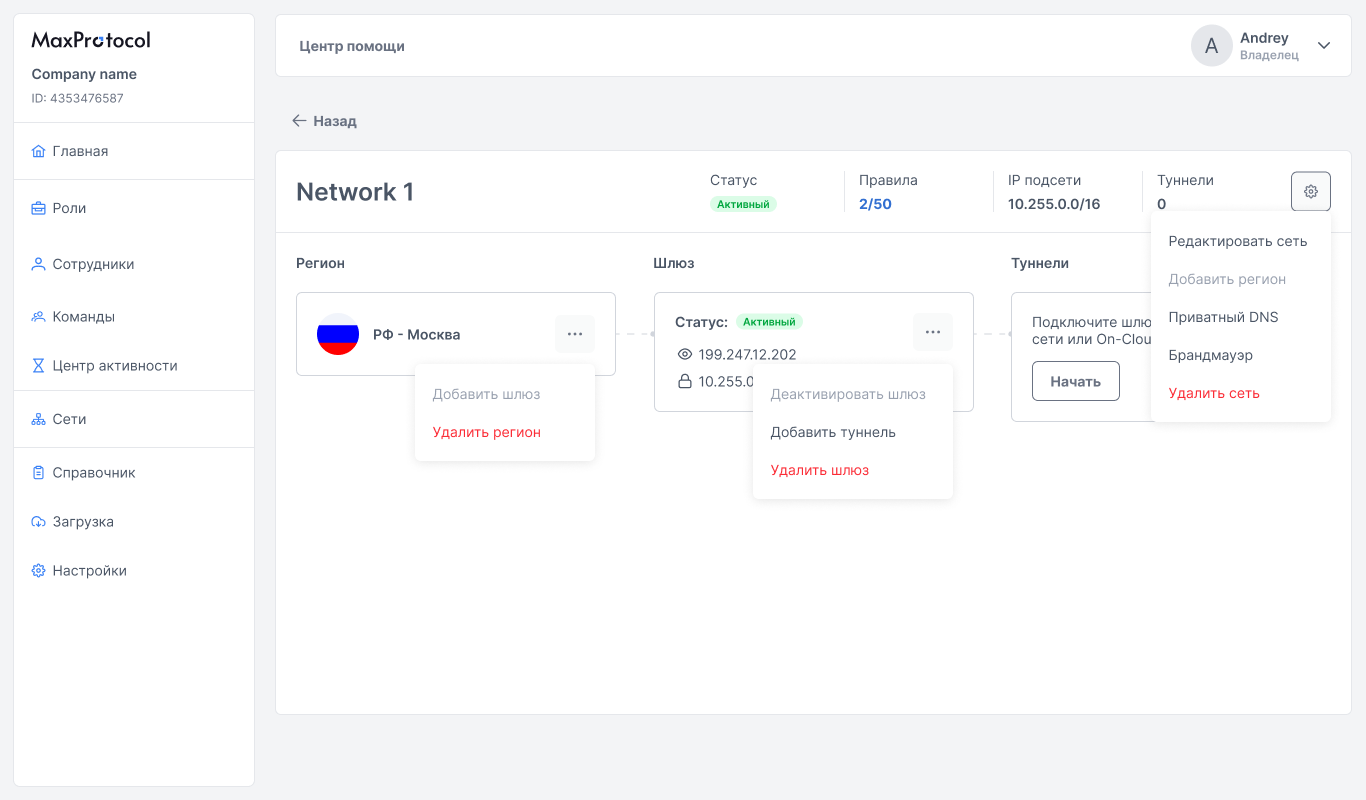
Regions
Adding a Region
A region can be added in two ways:
- Via the network settings menu → Add Region
- Via the context menu
⋯on the network list page → Add Region
The Add Region item is disabled if the network already has a region.
Region Context Menu
The ⋯ button on the region card opens the menu:
- Add gateway — deploy a gateway in this region. The item is disabled if the region already has a gateway.
- Delete region — remove the region and its gateway from the network
WARNING
Deleting a region also deletes all gateways and tunnels attached to it.
Gateways
A gateway is a node server through which tunnel connections are established. After a region is created, the gateway is deployed automatically.
Gateway Parameters
| Parameter | Description |
|---|---|
| Status | Current gateway state |
| Public IP | External gateway address (e.g., 199.247.12.202) |
| Internal IP | Gateway address within the network subnet (e.g., 10.255.0.1) |
Locations
If the network has exit nodes connected, a Locations block appears at the bottom of the gateway card with the flags of the countries where those nodes are deployed.
- Up to 5 flags are shown; the rest collapse into a
+Ncounter. - The flags refer to the exit nodes of the entire network, not to the region of that particular gateway — so every gateway in the network shows the same set of flags.
- If the network has no exit nodes, the block is not displayed.
NOTE
The Locations block shows which countries the network users' traffic can exit to the internet through. Assigning a specific region to a user is configured in Internet Access.
Gateway Statuses
| Status | Description |
|---|---|
| Active | Gateway is running, tunnels can connect |
| Inactive | Gateway is not running, traffic is not passing |
| In progress | Gateway is being deployed or updated |
| Deletion | Gateway is being deleted |
| Failed | The gateway could not be deployed |
In every status except Active and Inactive, a progress indicator is shown at the bottom of the gateway card. In the Failed status the indicator is red and fully filled.
Gateway Context Menu
The ⋯ button on the gateway card opens the menu:
- Deactivate gateway / Activate gateway — temporarily stop or resume gateway operation
- Add tunnel — open the tunnel creation form for this gateway
- Delete gateway — remove the gateway from the region
WARNING
Deactivating a gateway interrupts all active connections for tunnels attached to it.
Adding a Tunnel via Gateway
From the gateway context menu, select Add Tunnel — a dialog for selecting the connector type will appear. See Adding a Tunnel for connector selection and available connection types.