
Sign-In and Authentication
Signing in to the MaxProtocol control panel is done with an email address and password. After the password is verified, the system requests a second factor — a one-time code from an email or a code from an authenticator app, depending on the organization's settings.
Login Process
- Open your MaxProtocol control panel login page.
- Enter your email address and password. Optionally enable Remember me, then click Sign In.
- Confirm the login with a second factor:
- Email code — a one-time code sent to your registered email.
- App code — a six-digit code from an authenticator app (if app-based 2FA is enabled for the organization).
- Enter the received code in the verification field and click Confirm.
After successful code verification, you will gain access to the platform.
NOTE
The one-time email code is valid for a limited time. If the code did not arrive or has expired, request a new one — resending is available after 15 seconds.
Multi-Factor Authentication (MFA)
Multi-factor authentication adds an extra layer of protection to your account.
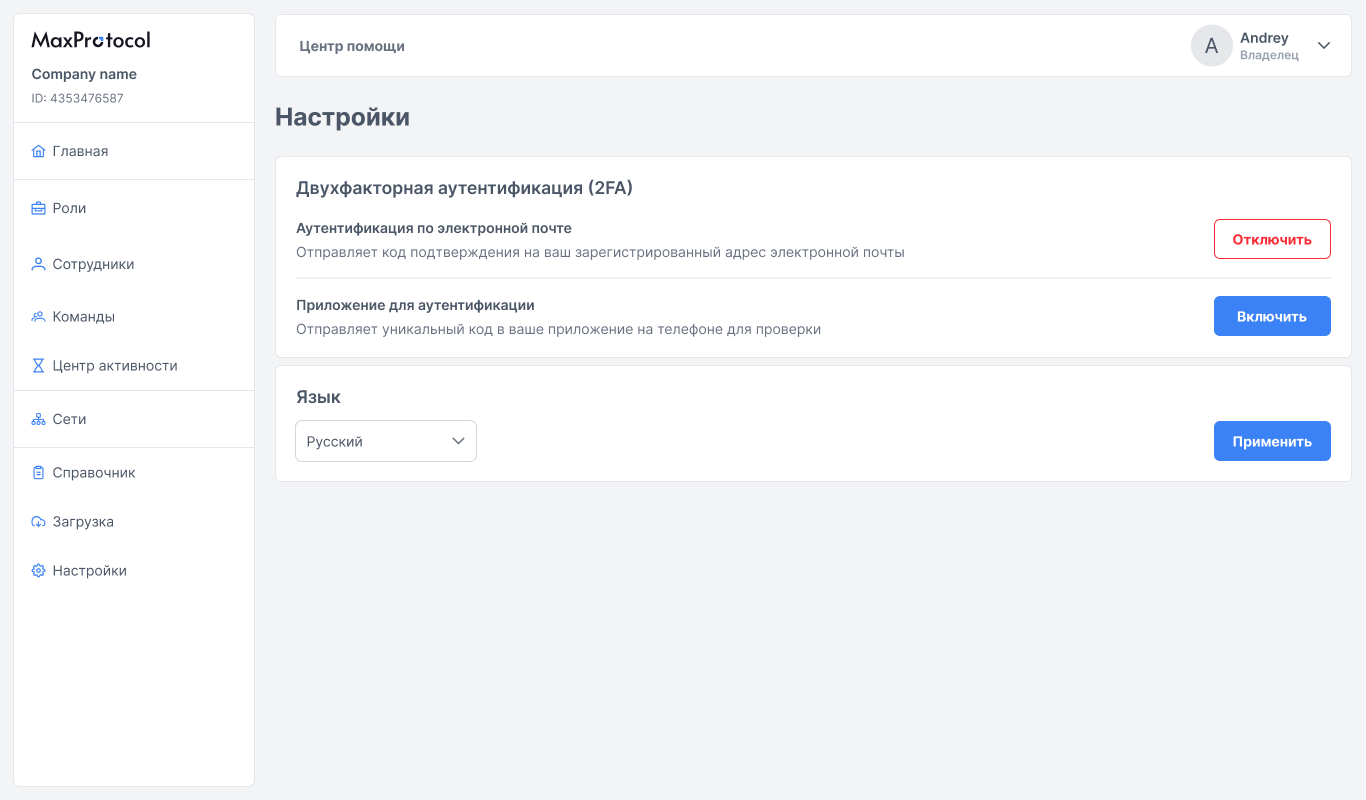
MFA Methods
| Method | Description | Default Status |
|---|---|---|
| Email authentication | A one-time code is sent to your registered email address on every login | Enabled |
| Authenticator app (2FA) | A six-digit code is generated by an authenticator app (e.g., Google Authenticator) and refreshes every 30 seconds | Disabled |
IMPORTANT
How the methods work: email authentication is always enabled by default. When app-based 2FA is enabled, email authentication is disabled. This setting is global and applies to the entire organization: all employees will be required to set up an authenticator app and enter its code on every login.
Enabling and configuring app-based 2FA is done in the Settings section.
Registration by Invitation
There is no self-registration in MaxProtocol — an account is created by invitation from an organization administrator (see Members).
- An email with a registration completion link is sent to your address.
- Follow the link and fill in the form: full name, password, and password confirmation. The organization owner sets only a password.
- After successful registration, the message "MaxProtocol account successfully created" appears — click Sign In and log in.
WARNING
The invitation link is valid for a limited time. If it has expired, a "Link deactivated" page opens — contact your organization administrator to resend the invitation.
Password Recovery
- On the login page, click Forgot password?
- Enter your account email address — an email with a password reset link will be sent to it.
- Follow the link and set a new password with confirmation.
- After the "Password updated" message, sign in with the new password.
NOTE
You can also change your password without a reset — in the Profile section. After changing the password, the current session ends and you will need to sign in again.