
Network Overview
The Networks section in MaxProtocol allows you to create isolated virtual networks for private access to resources. Each network has its own IP subnet, deployment regions, gateways, and tunnels.
Network List
The Networks section opens to a detailed network page. If there are multiple networks, a list of all organization networks is displayed.
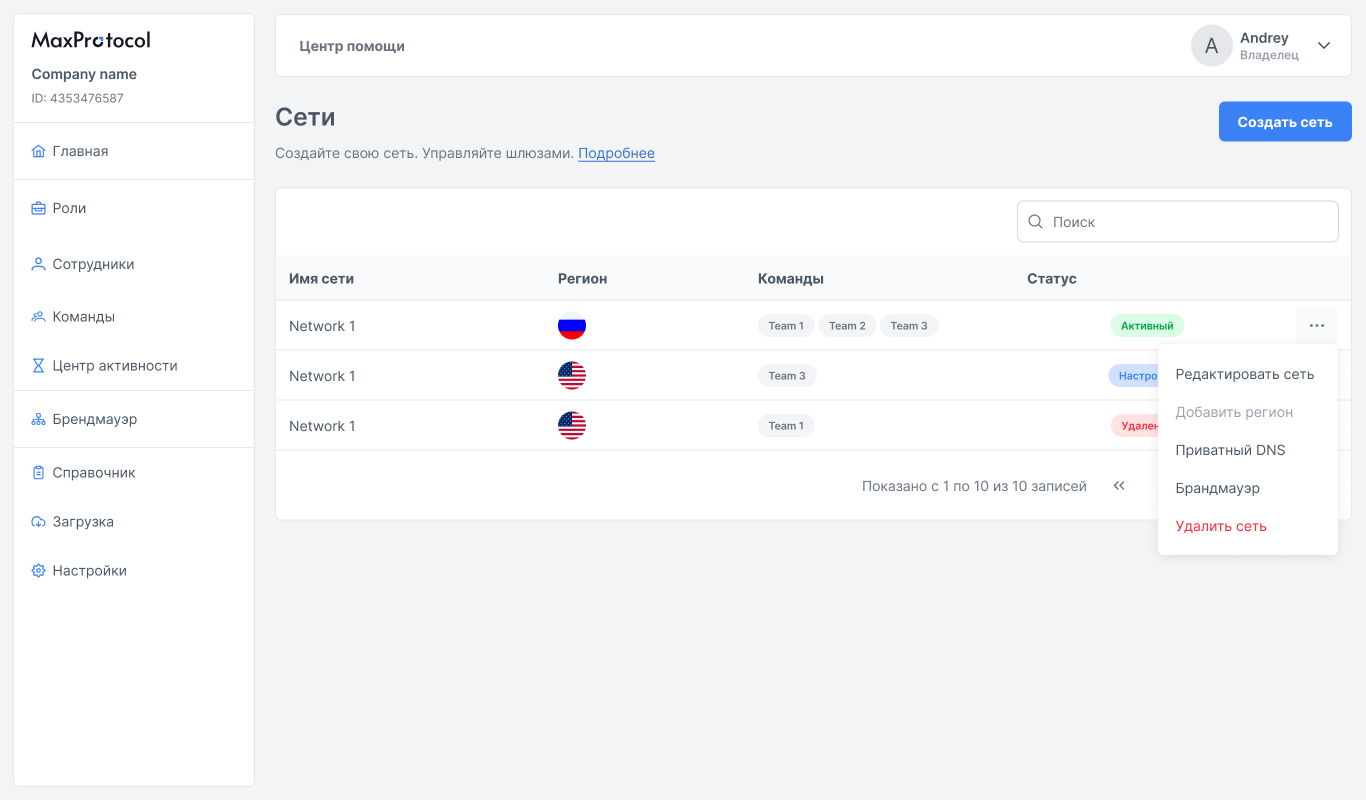
The table contains the following columns:
| Column | Description |
|---|---|
| Network name | Network display name |
| Region | Country flag of the deployment region |
| Teams | Teams and employees assigned to the network |
| Status | Current network state |
Network Statuses
| Status | Description |
|---|---|
| Active | Network is running, gateways are connected |
| Inactive | Network is temporarily not running |
| Setup | Network is being deployed after creation |
| Deletion | Network is being deleted |
| Failed | An error occurred while deploying the network |
NOTE
For a network in Failed status, the network page shows a Restart button that re-runs the deployment.
Network Context Menu
The ⋯ button in the network row opens a menu with five items:
- Edit network — change the name and the assigned teams and employees
- Add region — connect a region (the item is disabled if the network already has a region)
- Private DNS — connect internal DNS servers
- Firewall — go to traffic control rules
- Delete network — permanently delete the network
The Internet access and Exit nodes items are not part of the list menu — they are only available from the network settings menu on the network's own page.
WARNING
Network deletion is irreversible. All regions, gateways, and tunnels will be destroyed.
Configuration Process After Creation
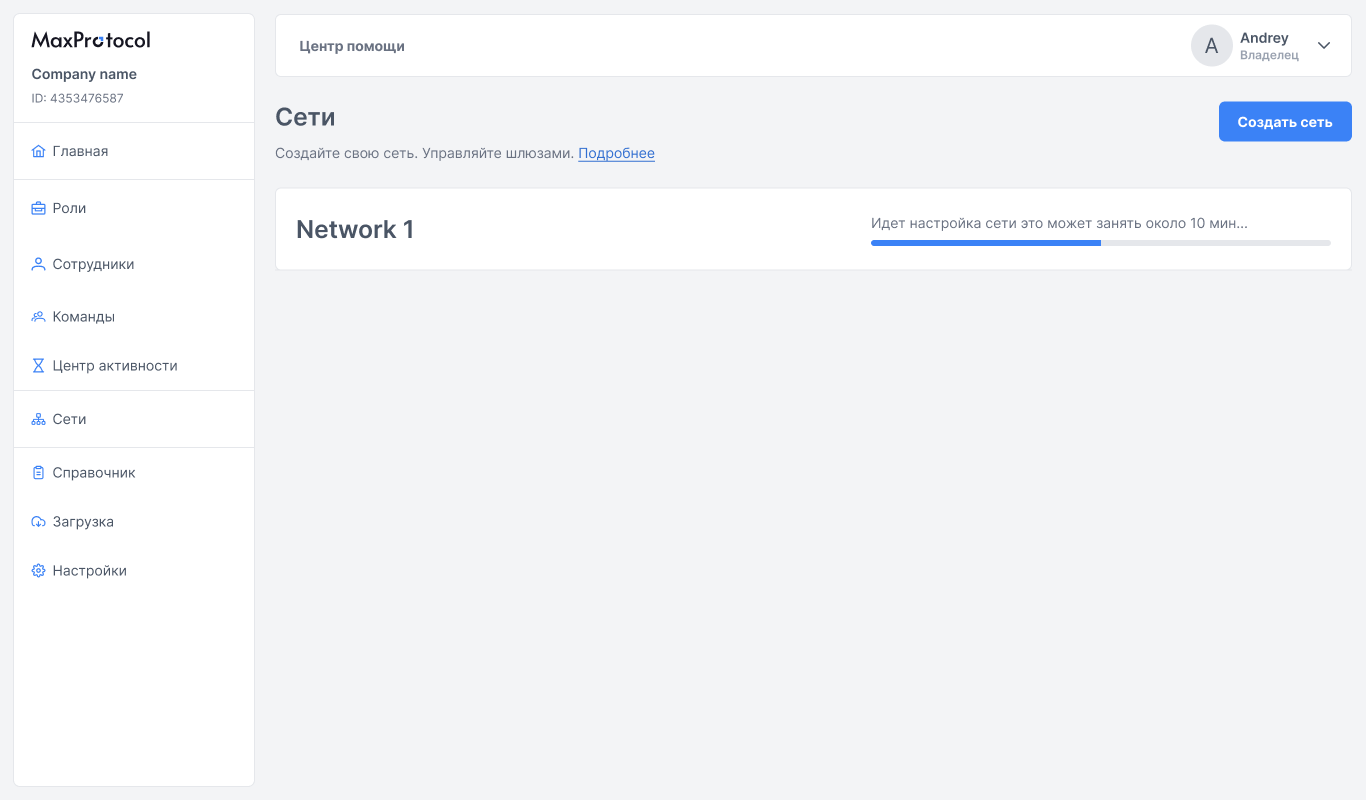
After creation, the network enters Setup status. This takes about 10 minutes.
INFO
You can close the page during configuration. Once complete, the network status will automatically change to Active.
Network Page
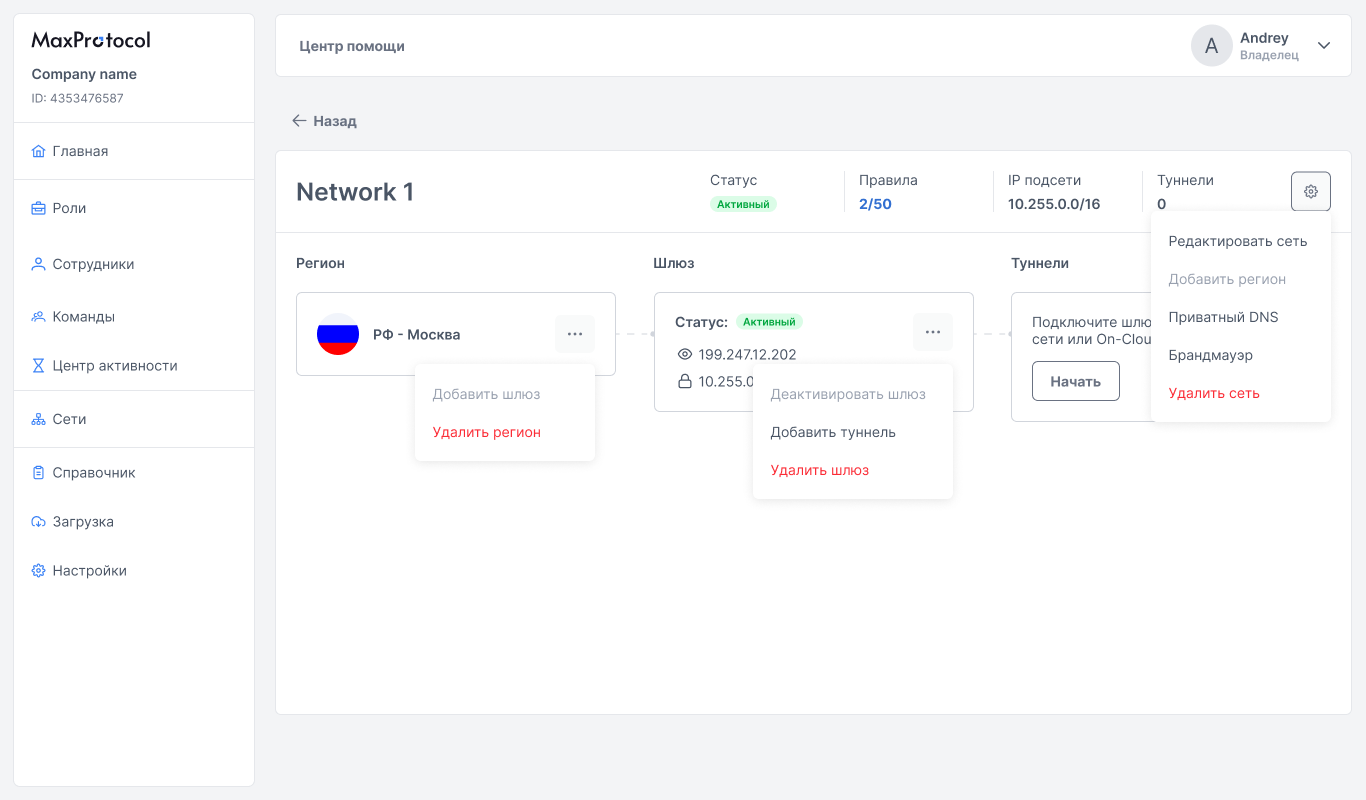
The detailed network page shows the network structure: Region → Gateway → Tunnels.
Network Parameters
The top section shows a summary:
| Parameter | Description |
|---|---|
| Status | Network state: Active or Inactive |
| Rules | Firewall rules: current count and the maximum for the network (e.g., 2/50). The maximum is set on the platform side |
| Subnet IP | Current network subnet with mask (e.g., 10.255.0.0/16) |
| Tunnels | Number of tunnels on the network's gateway |
The summary is shown for a network in Active or Inactive status. In the Setup, Deletion, and Failed statuses it is replaced by a progress indicator labelled with the running process.
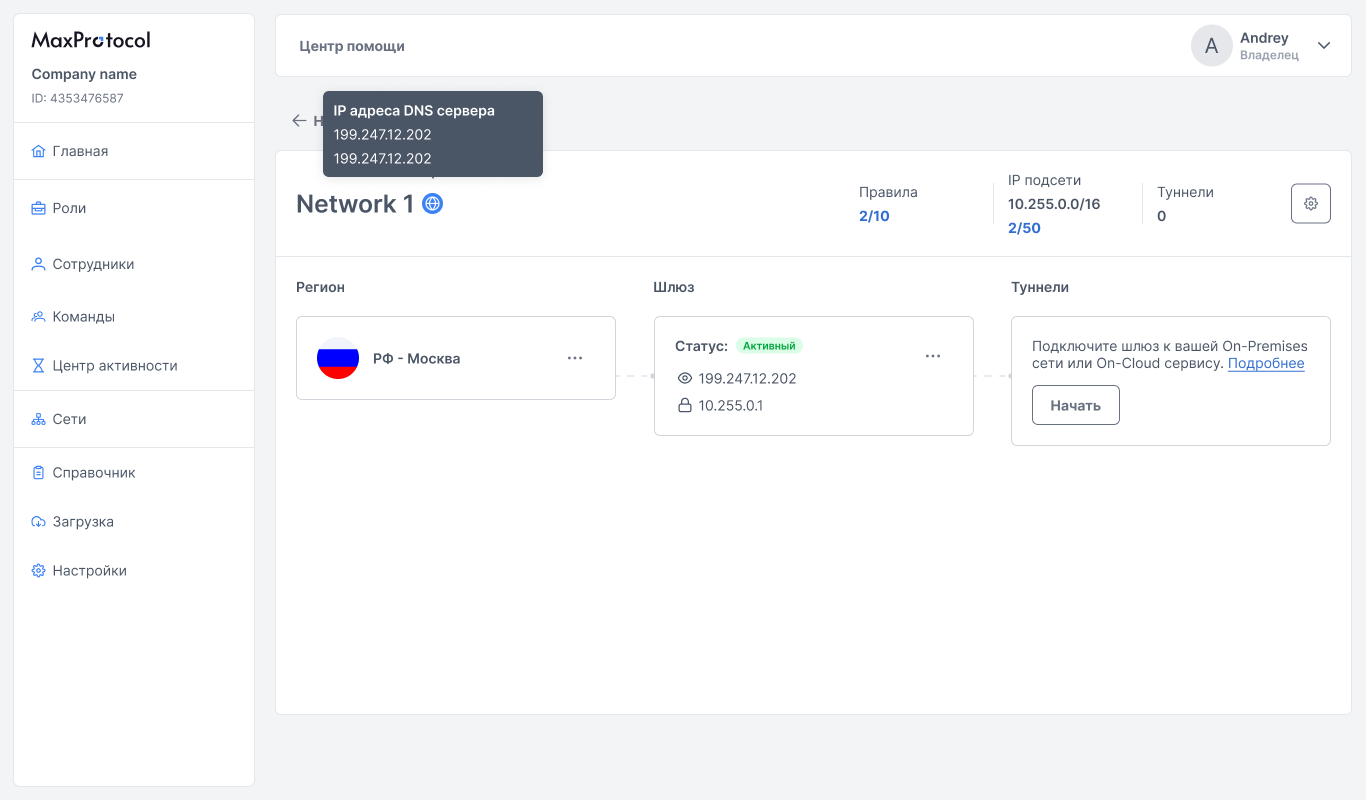
If Private DNS is enabled for the network, a globe icon appears next to the network name. Hovering over it shows the DNS server IP addresses.
Network Settings Menu
The settings button (gear) in the top-right corner of the network page opens a menu with seven items:
- Edit network — change network parameters
- Add region — add a deployment region (the item is disabled if the network already has a region)
- Private DNS — configure Private DNS for the network
- Firewall — manage traffic rules
- Internet access — user internet access policy
- Exit nodes — the network's exit nodes
- Delete network — start the network deletion process
NOTE
The settings button is shown only for a network in Active status and only to members with permission to edit networks. In the Inactive status the menu is unavailable.
Editing a Network
The Edit Network form allows you to change:
- Network name — name for identification
- Subnet — internal network IP range (display only, not editable after creation)
- Assign a team or employee — select from the dropdown list
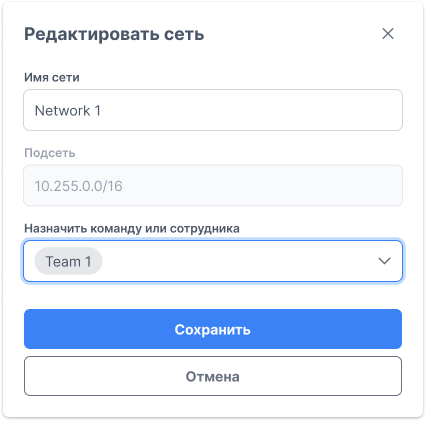
After making changes, click Save.