
Members
The Members section is designed for managing user accounts within your organization. Here you can invite new users, edit profiles, assign roles, and distribute employees across teams.
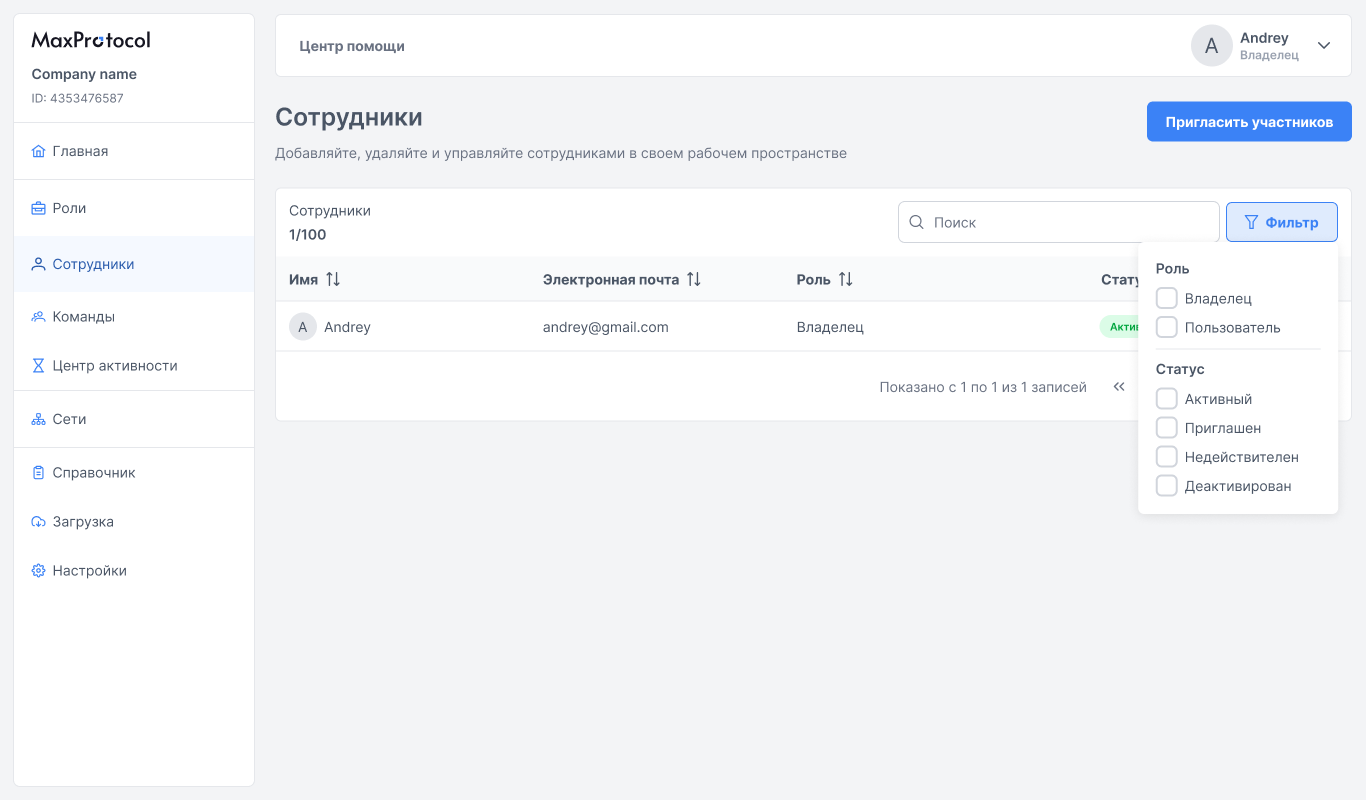
Member List
The page displays a table of all organization members:
| Column | Description |
|---|---|
| Name | Member's display name |
| Email address for authentication and notifications | |
| Role | Member's role: Owner, Administrator, User, or Billing |
| Status | Current account status |
Use the Search field to quickly find a member by name or email.
Member Counter
The table header shows a used / available counter (e.g., 5/100 — 5 out of 100 slots used).
The denominator depends on the organization's plan and is always one of three values:
| Available | Description |
|---|---|
20 | Basic limit |
100 | Extended limit |
∞ | No limit on the number of members |
NOTE
The numerator counts the records in the current view: with an active Search or Filter, it drops to the number of matching members. Reset the search and filters to see the total.
To change the limit, contact support.
Table Actions
Available actions depend on the member's status:
- Active and Deactivated — pencil icon to open the profile.
- Invited — resend invitation icon and trash icon to delete the invitation.
Member Statuses
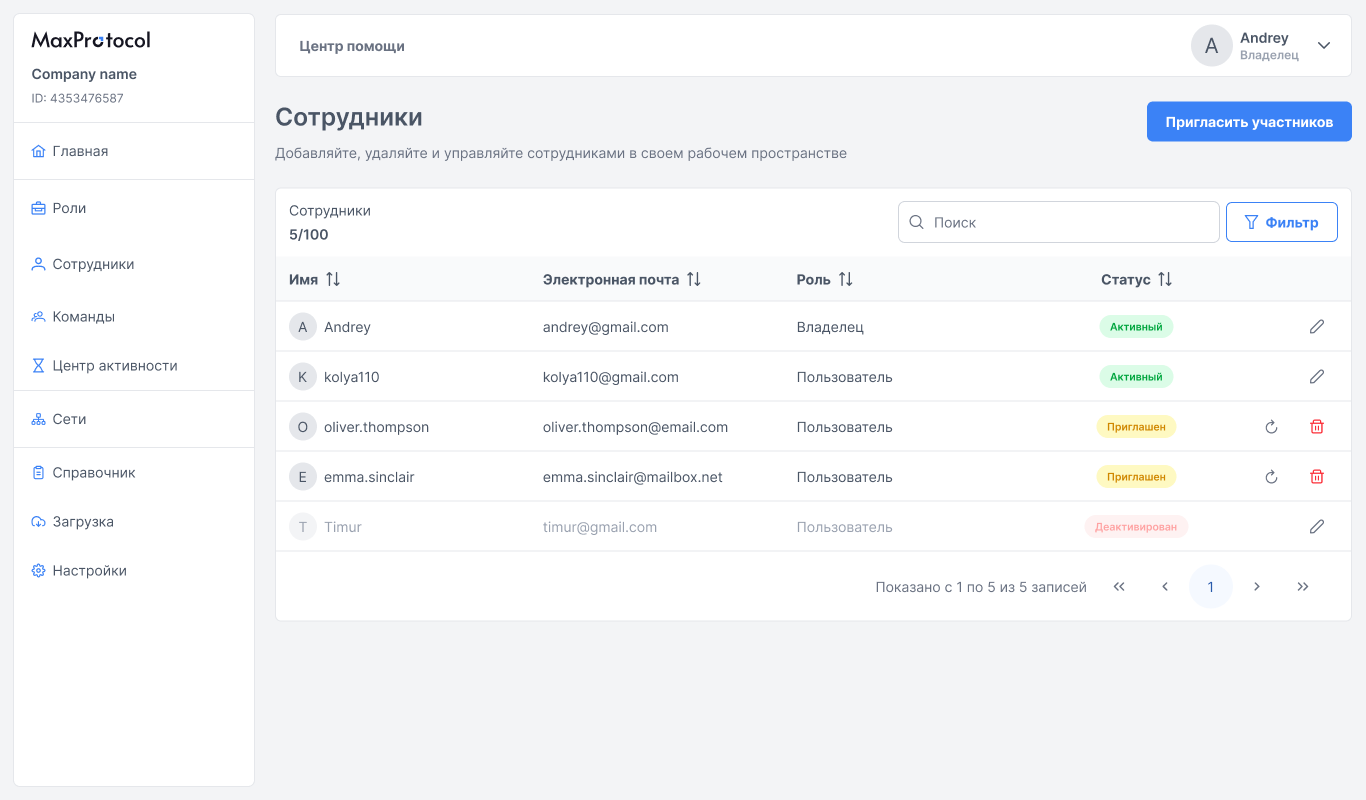
| Status | Description |
|---|---|
| Active | The member accepted the invitation and has access to the platform |
| Invited | The invitation was sent but not yet accepted |
| Invalid | The invitation has expired |
| Deactivated | Access is suspended. Data is preserved, login is not possible |
Inviting Members
To add new employees to the organization:
- Click the Invite Members button in the top-right corner.
- In the form that opens, enter one or more email addresses separated by commas and click Apply.
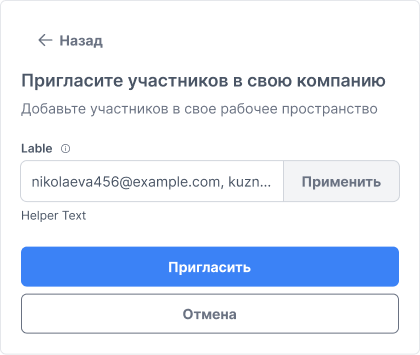
- Added addresses will appear as tags below the input field. To remove a specific address, click
✕next to it. Addresses of existing organization members are filtered out with a warning.
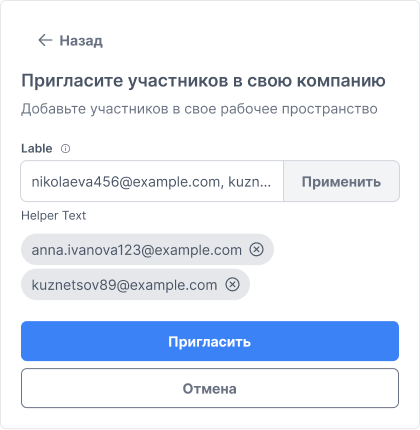
- Click Invite to send the invitations or Cancel to close the form.
After successful submission, a notification will appear: "Done — Invitation sent to the specified email address".
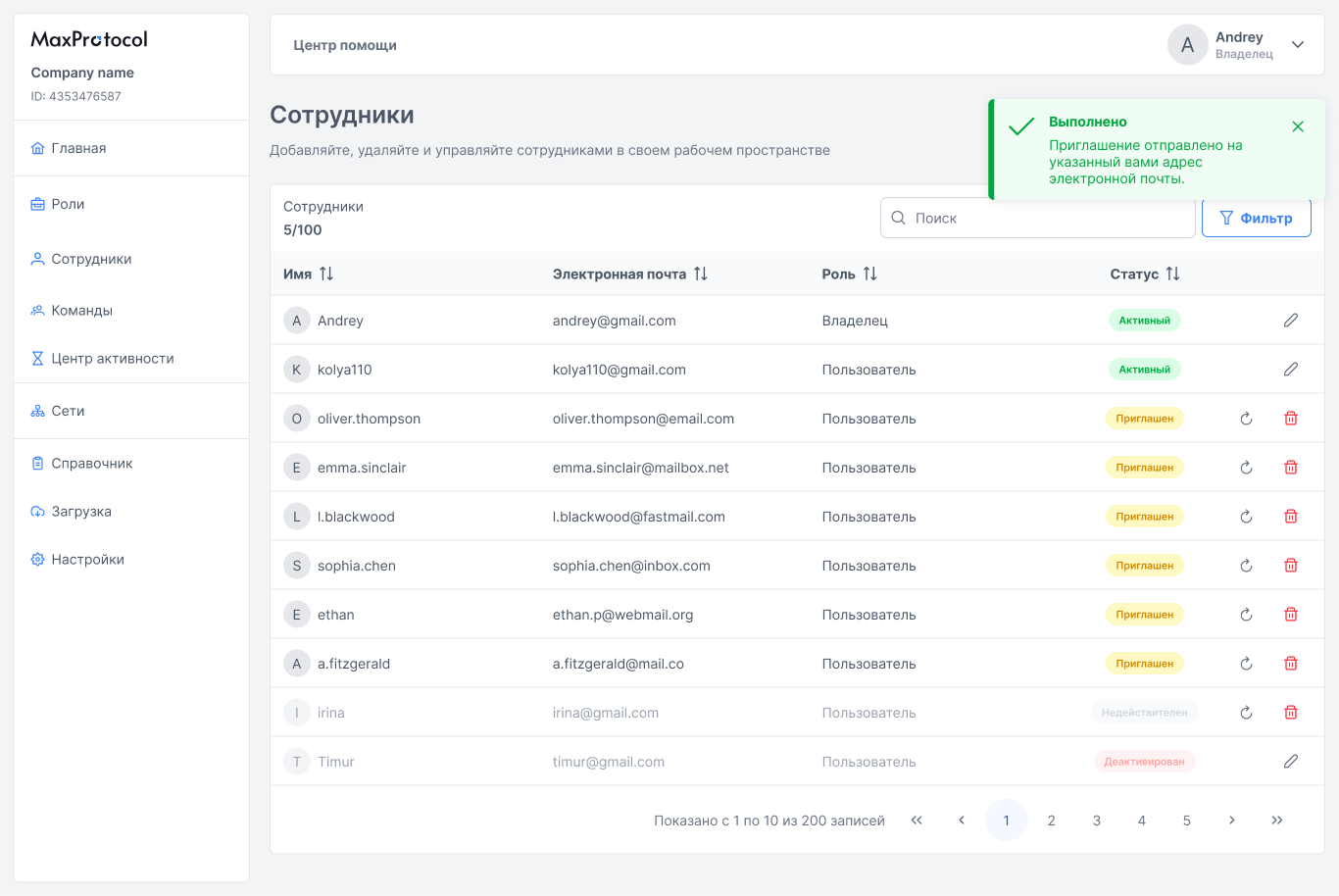
Invited employees will have Invited status until they accept the invitation.
WARNING
The invitation is valid for 24 hours from the time it is sent.
Member Profile
To open a profile, click the pencil icon in the desired member's row.
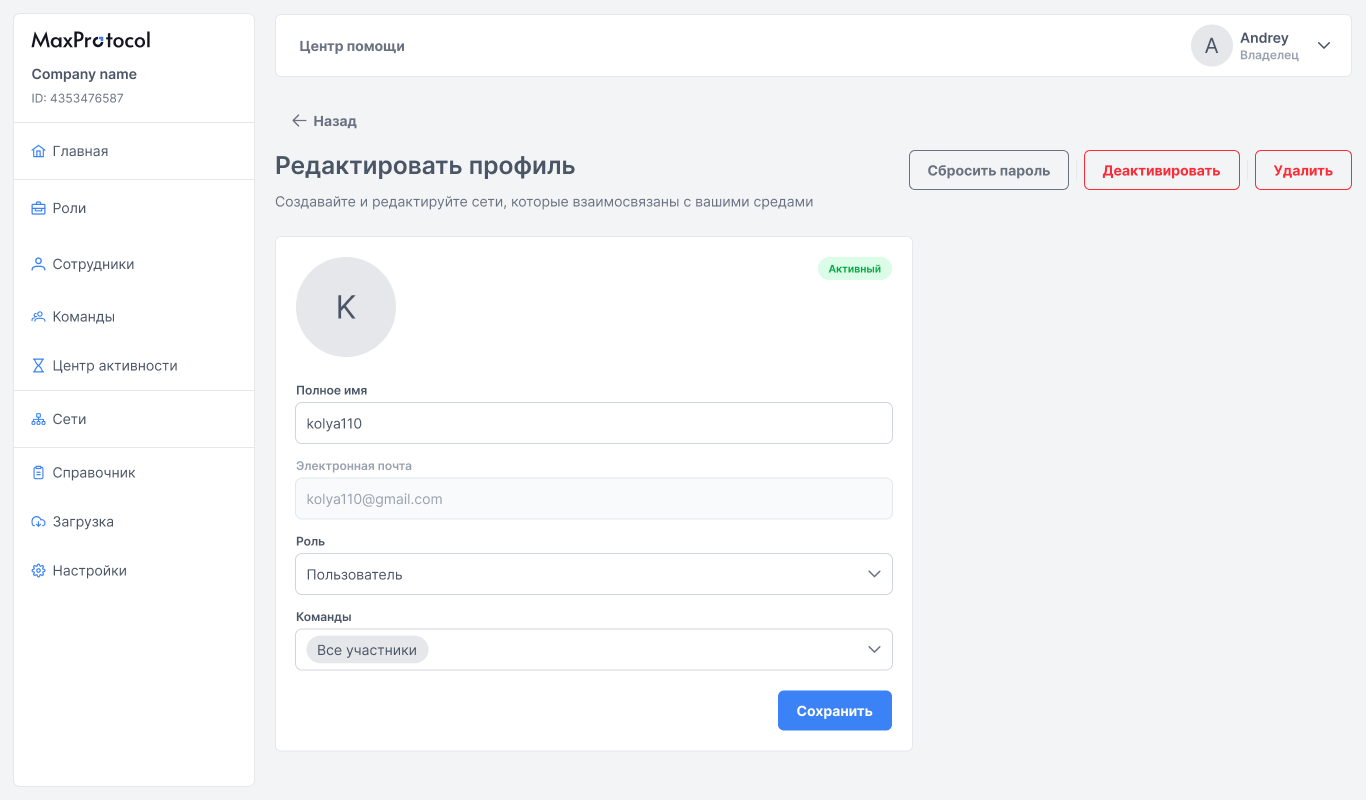
The following fields are available on the profile page:
| Field | Description |
|---|---|
| Full Name | Member's display name (editable) |
| Email address (read-only) | |
| Role | Role in the organization: Owner, Administrator, User, or Billing |
| Teams | Teams the member belongs to |
Assigning Teams
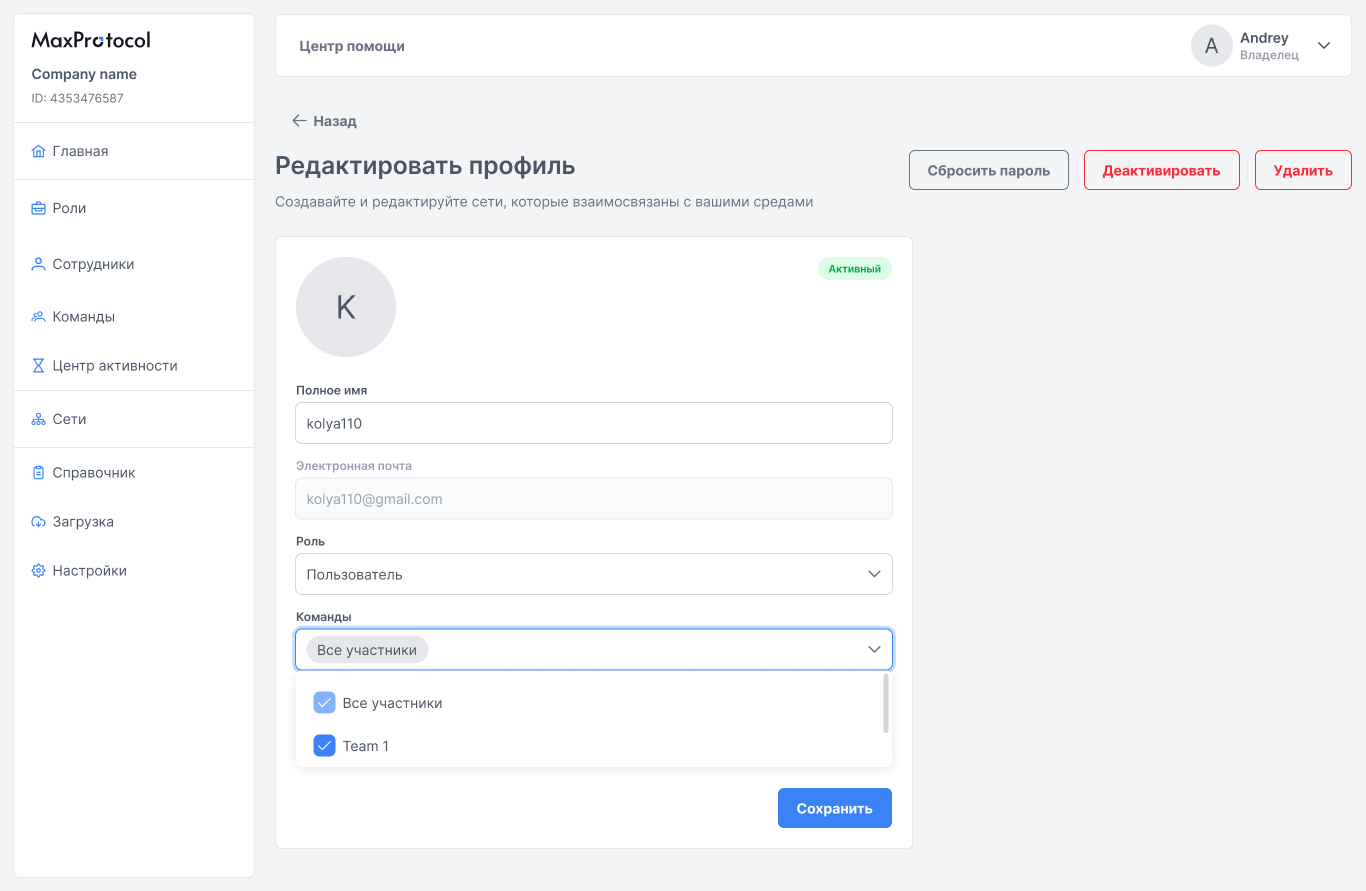
Click the Teams field to open a dropdown list. Select the desired teams — a member can belong to multiple teams simultaneously. By default, all members belong to the All Members team.
Saving Changes
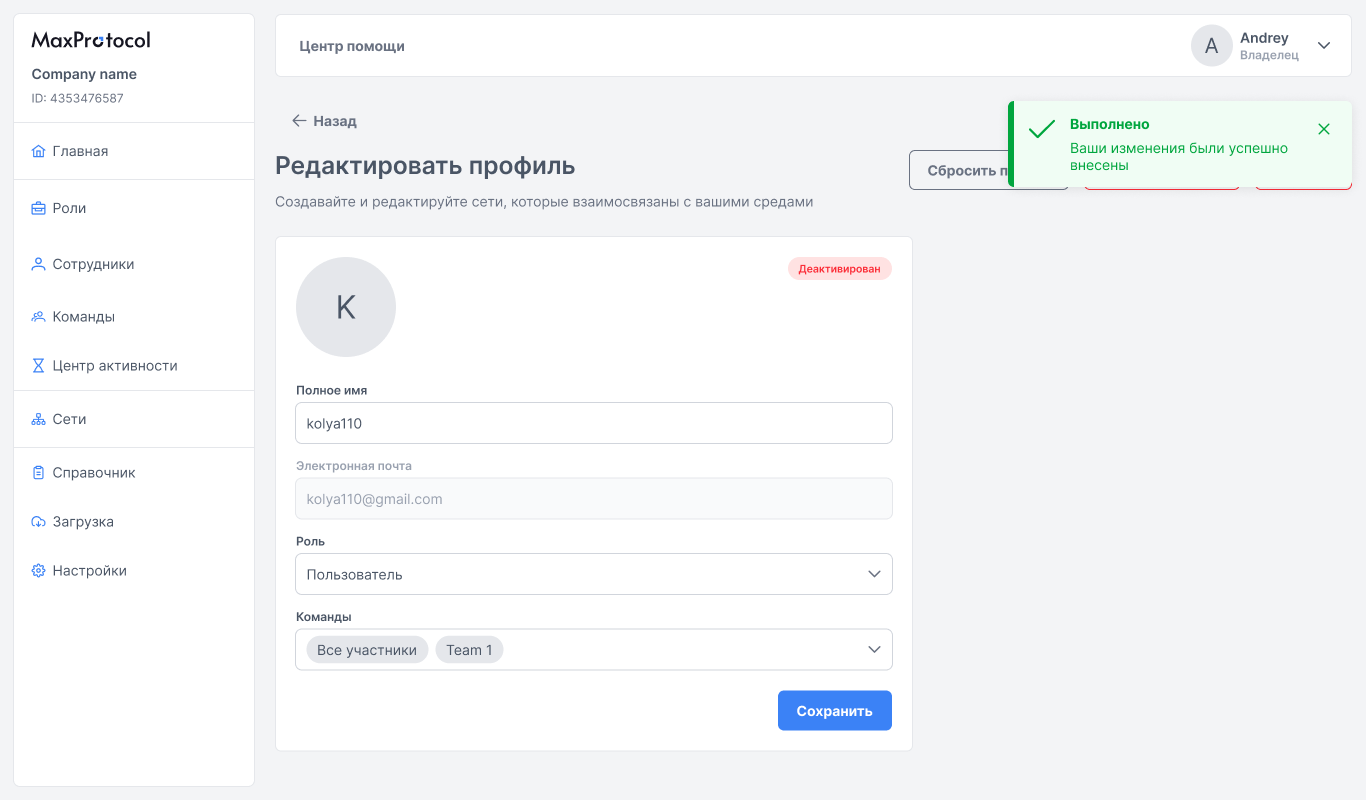
After editing, click Save. Upon successful save, a notification will appear: "Done — Your changes have been successfully applied".
Additional Actions
The profile page also provides:
- Reset Password — sends the employee an email with password reset instructions.
- Deactivate — suspends platform access. The member's status changes to Deactivated.
- Activate — restores access for a deactivated employee (shown instead of Deactivate).
- Delete — permanently removes the employee's account from the organization.
WARNING
Deactivation immediately revokes the employee's access to all organization networks and resources. Account deletion is irreversible.