
Roles
Roles define the level of access employees have to MaxProtocol platform features. Each employee is assigned one role, which determines which sections and actions are available to them.
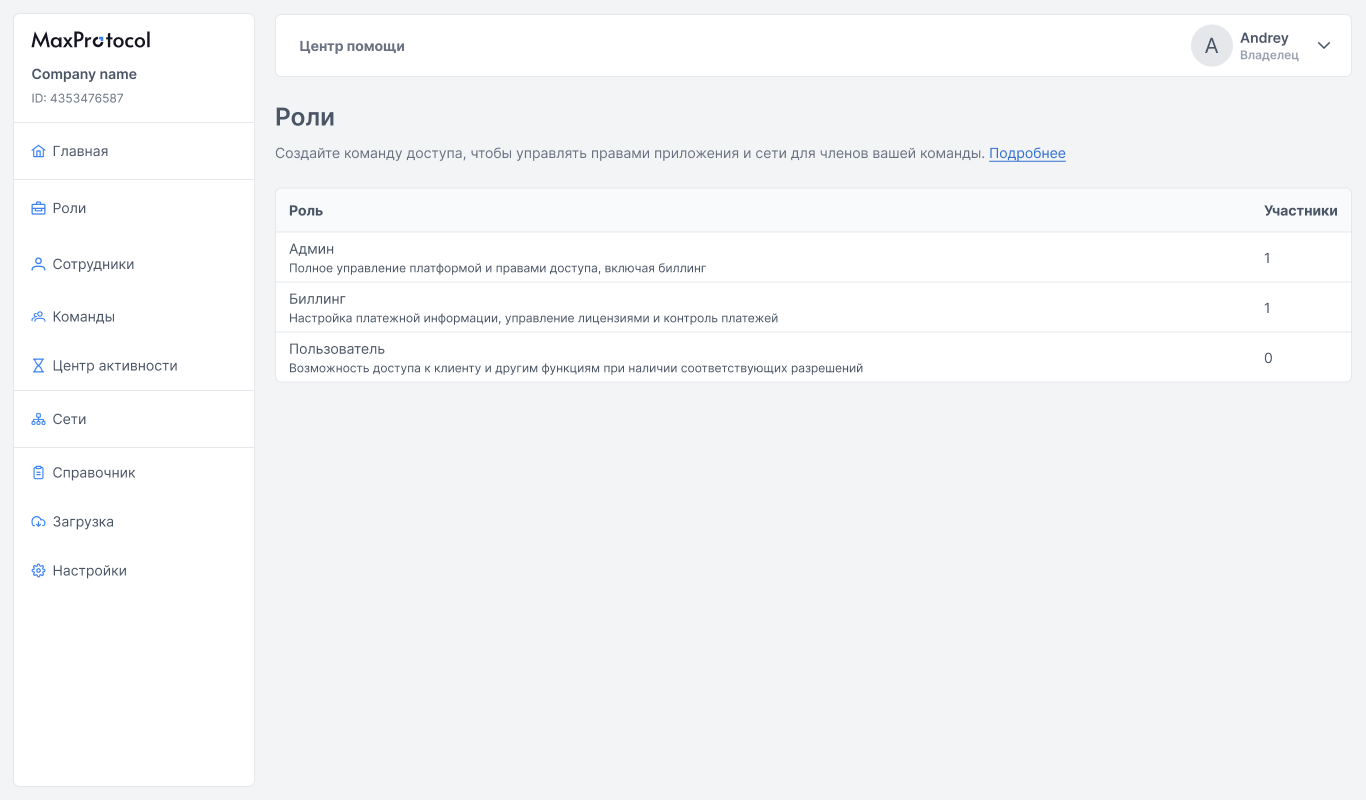
Role List
The page displays a table of system roles:
| Role | Description |
|---|---|
| Owner | Full control over the organization, including role management for all employees |
| Admin | Full platform management and access rights, including billing |
| Billing | Payment information setup, license management, and payment control |
| User | Access to the client and other features when corresponding permissions are granted |
The Members column shows the number of employees with that role.
Role Descriptions
Owner
The role with maximum permissions. It is assigned when the organization is created and cannot be granted through the control panel. The Owner has access to all platform sections and can manage the roles of any employee, including administrators.
Admin
Full access to platform management: network configuration, employee and team management, firewall rules, billing, and licenses.
Billing
Access to billing and licensing sections: viewing and configuring payment details, managing subscriptions, and controlling invoices. Network feature access is restricted.
User
Basic platform access: connecting to networks and using the client. Management features are unavailable.
Who Can Assign Roles
The ability to change an employee's role depends on the role of the person making the change:
| Role | Role management permissions |
|---|---|
| Owner | Assigns any role — Administrator, User, or Billing — to any employee |
| Administrator | Can only switch employees between the User and Billing roles |
| Billing | Cannot manage roles |
| User | Cannot manage roles |
NOTE
The Owner role cannot be assigned or removed through the control panel.
Role Page
Click a role row in the table to open its page. Here you can see the list of employees assigned to that role.
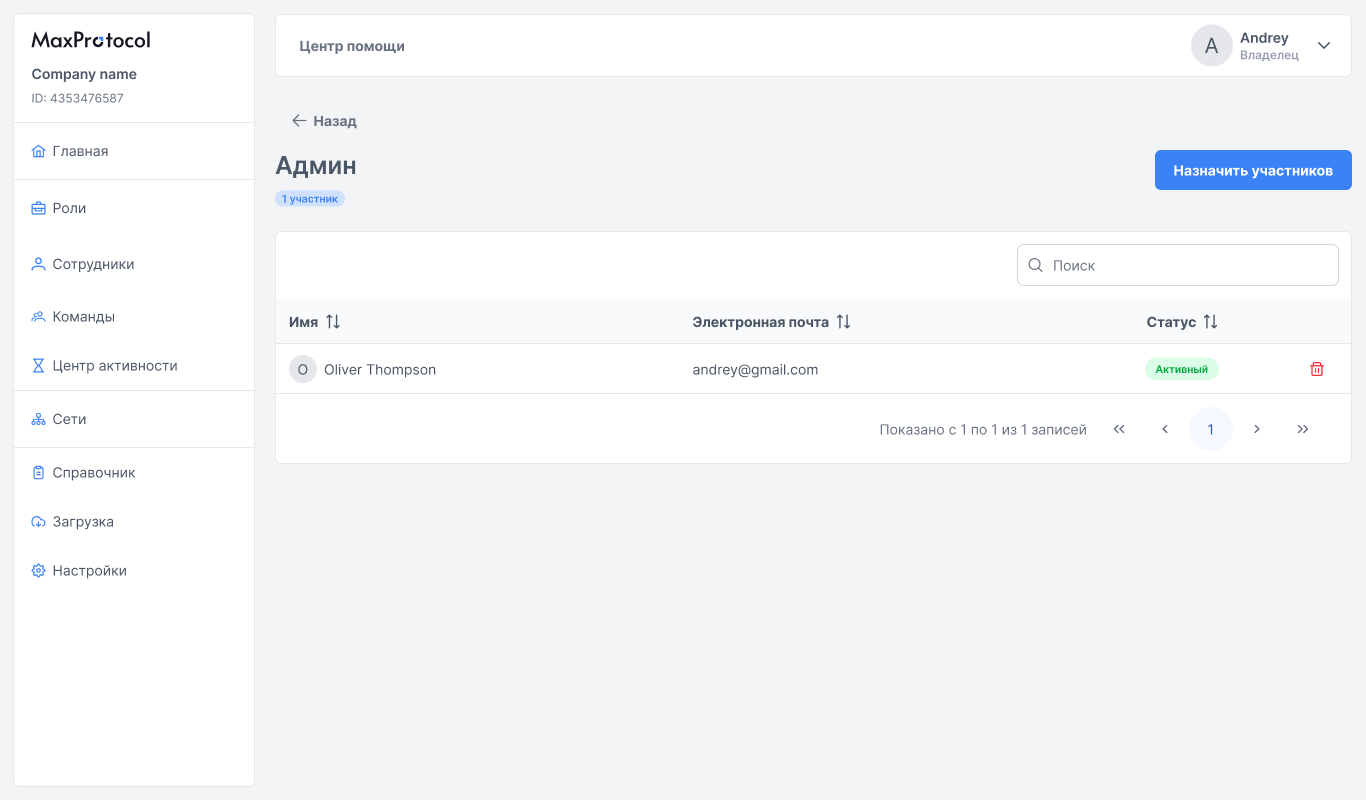
The role page displays a member table:
| Column | Description |
|---|---|
| Name | Member's display name |
| Member's email address | |
| Status | Current account status |
To remove a member from a role, click the trash icon in their row.
Assigning Members
To add employees to a role:
- Open the desired role from the list.
- Click the Assign Members button in the top-right corner.
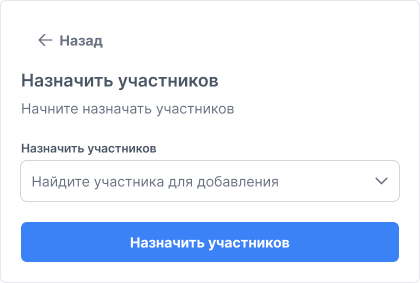
- In the form, click the Assign Members field — a dropdown with search across all organization members will open.
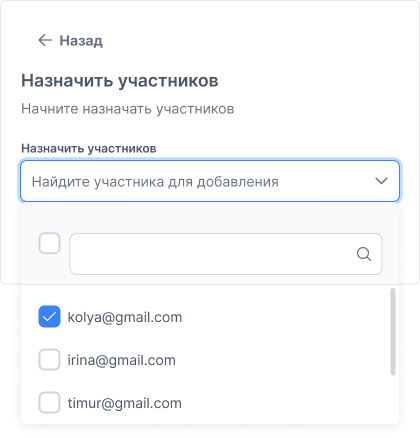
- Select one or more members. Selected addresses will appear in the field as tags.

- Click Assign Members to save.
TIP
A member's role can also be changed directly in their profile in the Members section.