
Teams
Teams are groups of employees that are granted shared access to networks. Teams are used in firewall rules as a traffic source, and allow you to manage network access for a group of users simultaneously.
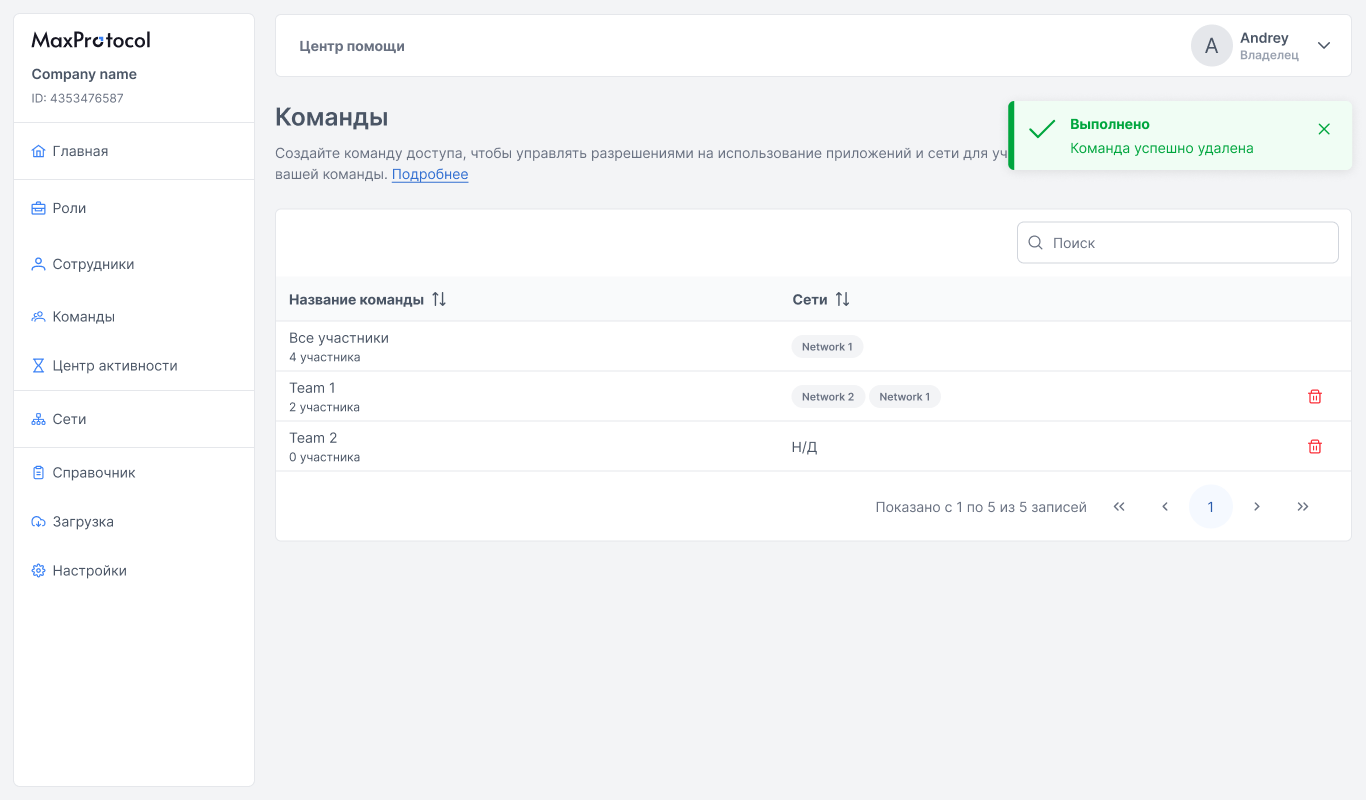
Team List
The page displays a table of all organization teams:
| Column | Description |
|---|---|
| Team name | Team name and member count |
| Networks | Networks available to this team |
To delete a team, click the trash icon in its row. Upon successful deletion, a notification will appear: "Done — Team successfully deleted".
Use the Search field to quickly find a team by name.
The "All Members" Team
All Members is a system (protected) team that automatically includes all organization employees. It cannot be deleted or renamed, and its membership is managed automatically — you cannot manually remove an employee from this team. New employees are added to it when they accept their invitation.
Creating a Team
- On the Teams page, click the Create Team button in the top-right corner.
- In the form that opens, fill in the fields:
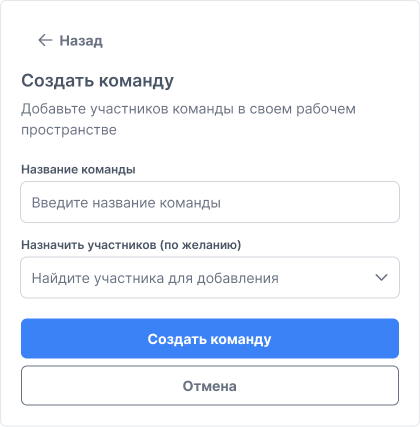
- Team name — enter a unique team name.
- Assign members (optional) — click the field to open a searchable member list and select the desired members.
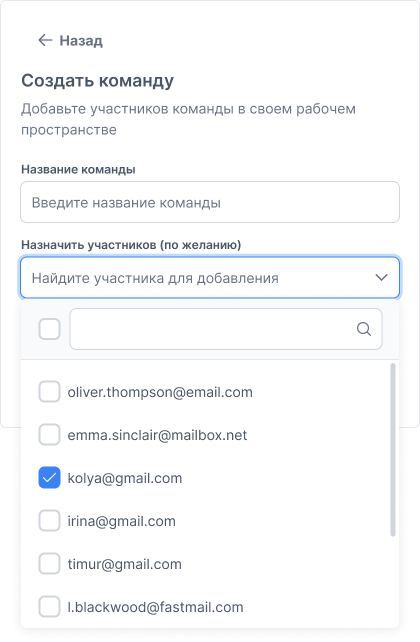
Selected employees appear in the field as tags.
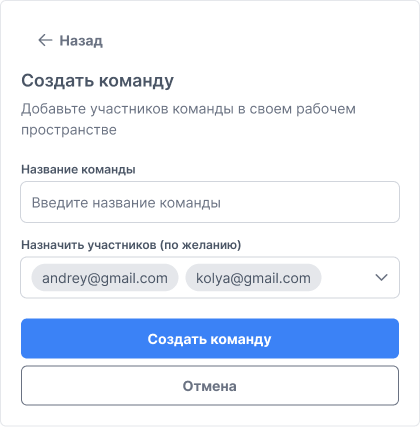
- Click Create Team to save, or Cancel to close the form.
Team Page
Click a team row in the table to open its page with the member list.
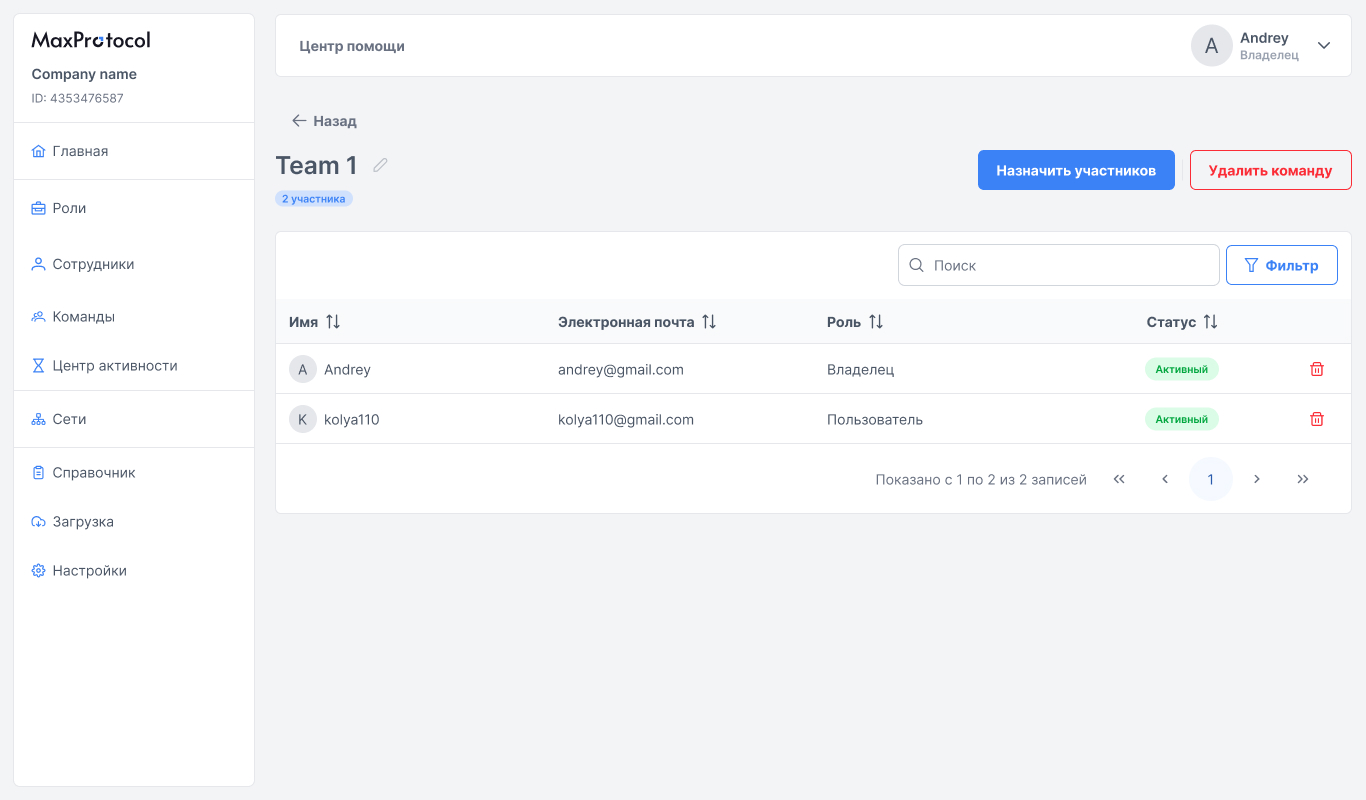
The page displays a member table:
| Column | Description |
|---|---|
| Name | Member's display name |
| Member's email address | |
| Role | Member's role in the organization |
| Status | Current account status |
Available actions:
- Search — quickly find a member by name or email.
- Remove from team — trash icon in the member's row.
Renaming a Team
Click the pencil icon next to the team name in the page header to rename it.
Deleting a Team
Click the Delete Team button in the top-right corner of the team page.
Assigning Members
To add employees to an existing team:
- Open the desired team from the list.
- Click the Assign Members button.
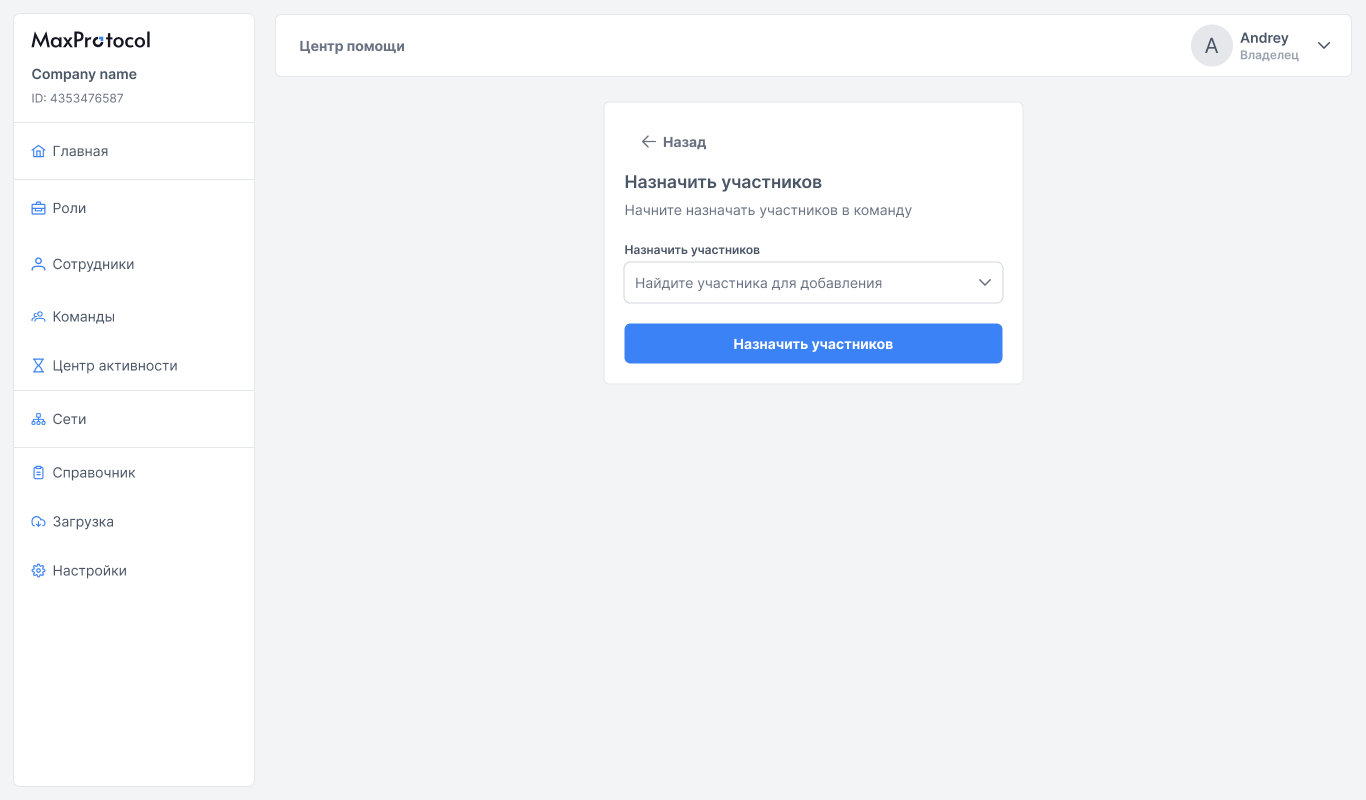
- Click the Assign Members field — a dropdown with a searchable member list will open.
- Select the desired members and click Assign Members to save.
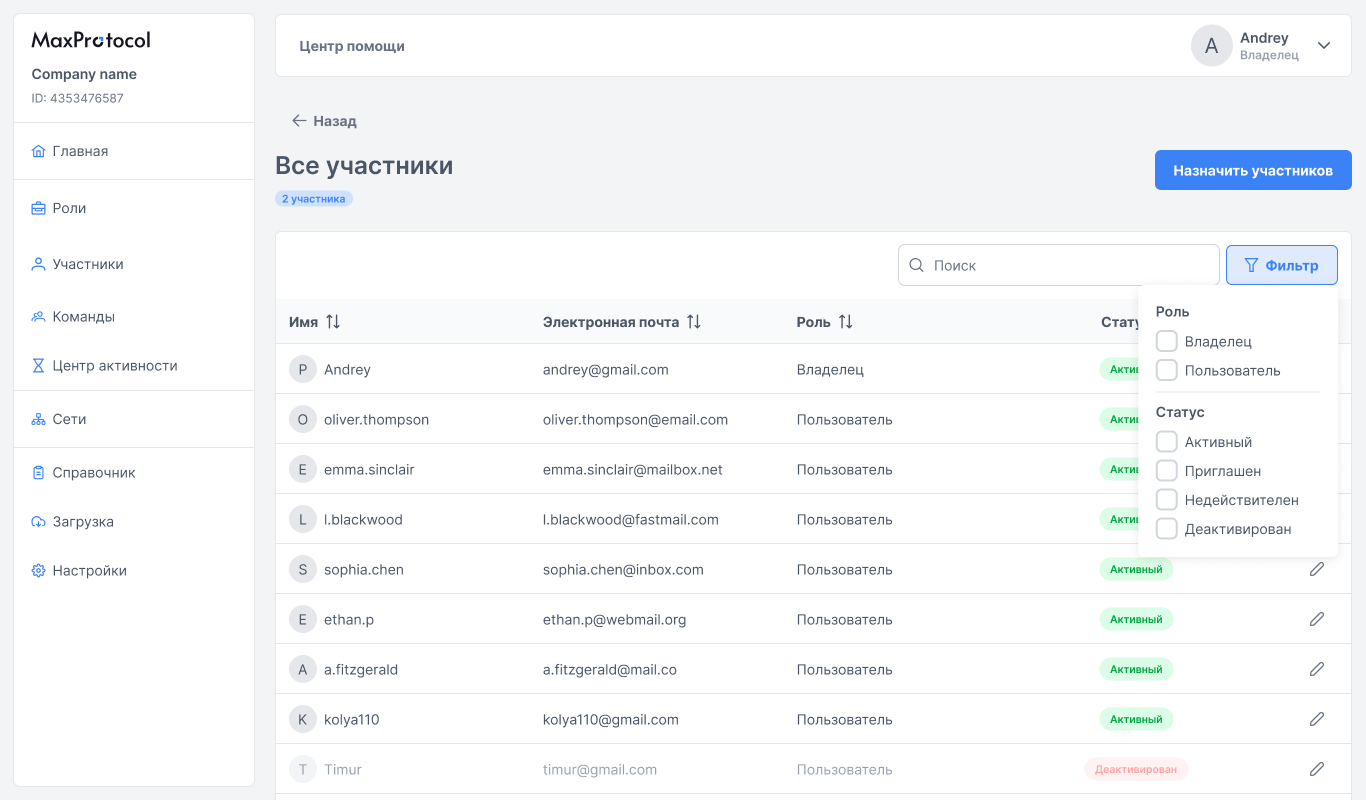
The "All Members" Team
This team's page contains the full list of organization employees with filtering by role and status.
TIP
Teams can also be assigned to a member directly through their profile in the Members section.