
Direct Connection
Direct Connection is a connector for connecting a standalone server through a direct connection without VPN tunneling. Traffic is routed directly from the MaxProtocol gateway to the remote server, for example via SSH or HTTPS.
When to Use
Use Direct Connection if:
- The resource is in the cloud with a public IP address
- Full traffic isolation via VPN is not required
- The remote server does not support installing OpenVPN
- You need to quickly connect a resource without additional configuration on its side
TIP
For On-Premises networks with strict traffic filtering, use OpenVPN XOR Tunnel — it provides a higher level of protection and traffic obfuscation.
Creating a Connection
Step 1 — Select a Connector
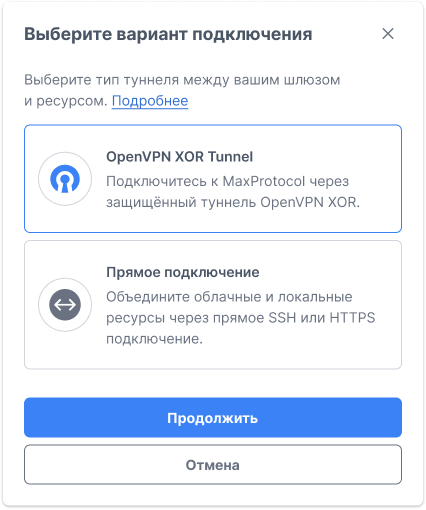
In the gateway context menu ⋯, select Add Tunnel. In the Select Connection Type dialog, choose Direct Connection and click Continue.
Step 2 — Fill in the Form
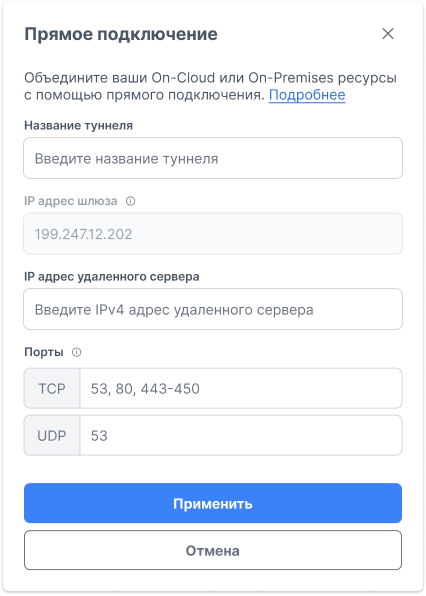
| Field | Description |
|---|---|
| Tunnel name | Name for identification in the interface (e.g., GitLab Cloud) |
| Gateway IP address | Public IP of the MaxProtocol gateway — filled automatically (e.g., 199.247.12.202) |
| Remote server IP address | Public IPv4 address of the remote server |
| TCP ports | List of TCP ports to forward (e.g., 53, 80, 443-450) |
| UDP ports | List of UDP ports to forward (e.g., 53) |
NOTE
Only specify ports that are actually used by services on the remote server. This reduces potential security risks.
Click Apply to save the connection.
Existing Connection Parameters
For an already created connection, the context menu ⋯ provides a Manage option, which displays all parameters:
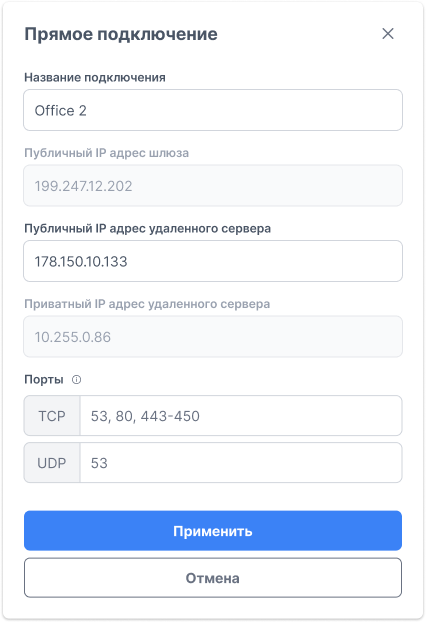
| Field | Description |
|---|---|
| Connection name | Connection name |
| Gateway public IP address | MaxProtocol gateway address (read-only) |
| Remote server public IP address | Remote server address |
| Remote server private IP address | Internal address in the network subnet (read-only, assigned automatically) |
| TCP / UDP ports | Open ports for traffic forwarding |
Managing the Connection
The tunnel context menu ⋯ provides:
- Manage — view and edit connection parameters
- Delete Tunnel — remove the connection from the gateway