
Network Overview
The Networks section in MaxProtocol allows you to create isolated virtual networks for private access to resources. Each network has its own IP subnet, deployment regions, gateways, and tunnels.
Network List
The Networks section opens to a detailed network page. If there are multiple networks, a list of all organization networks is displayed.
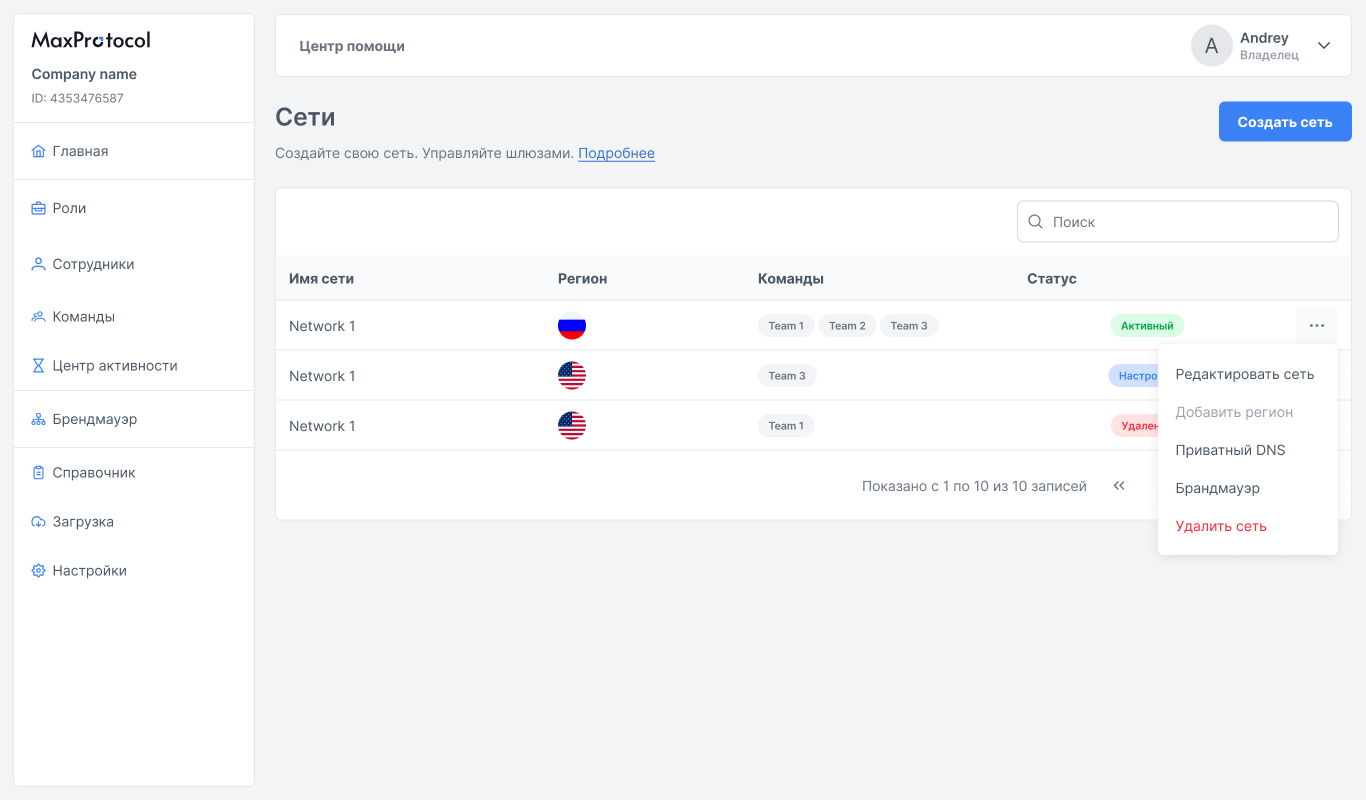
The table contains the following columns:
| Column | Description |
|---|---|
| Network name | Network display name |
| Region | Region flag(s) of deployment (can be multiple) |
| Teams | Teams and employees assigned to the network |
| Status | Current network state |
Network Statuses
| Status | Description |
|---|---|
| Active | Network is running, gateways are connected |
| Configuring | Network is being deployed after creation |
| Deleting | Network is being deleted |
Network Context Menu
The ⋯ button in the network row opens the menu:
- Edit network — change name, subnet, assigned teams and employees
- Add region — connect an additional region
- Private DNS — connect internal DNS servers
- Firewall — go to traffic control rules
- Delete network — permanently delete the network
WARNING
Network deletion is irreversible. All regions, gateways, and tunnels will be destroyed.
Configuration Process After Creation
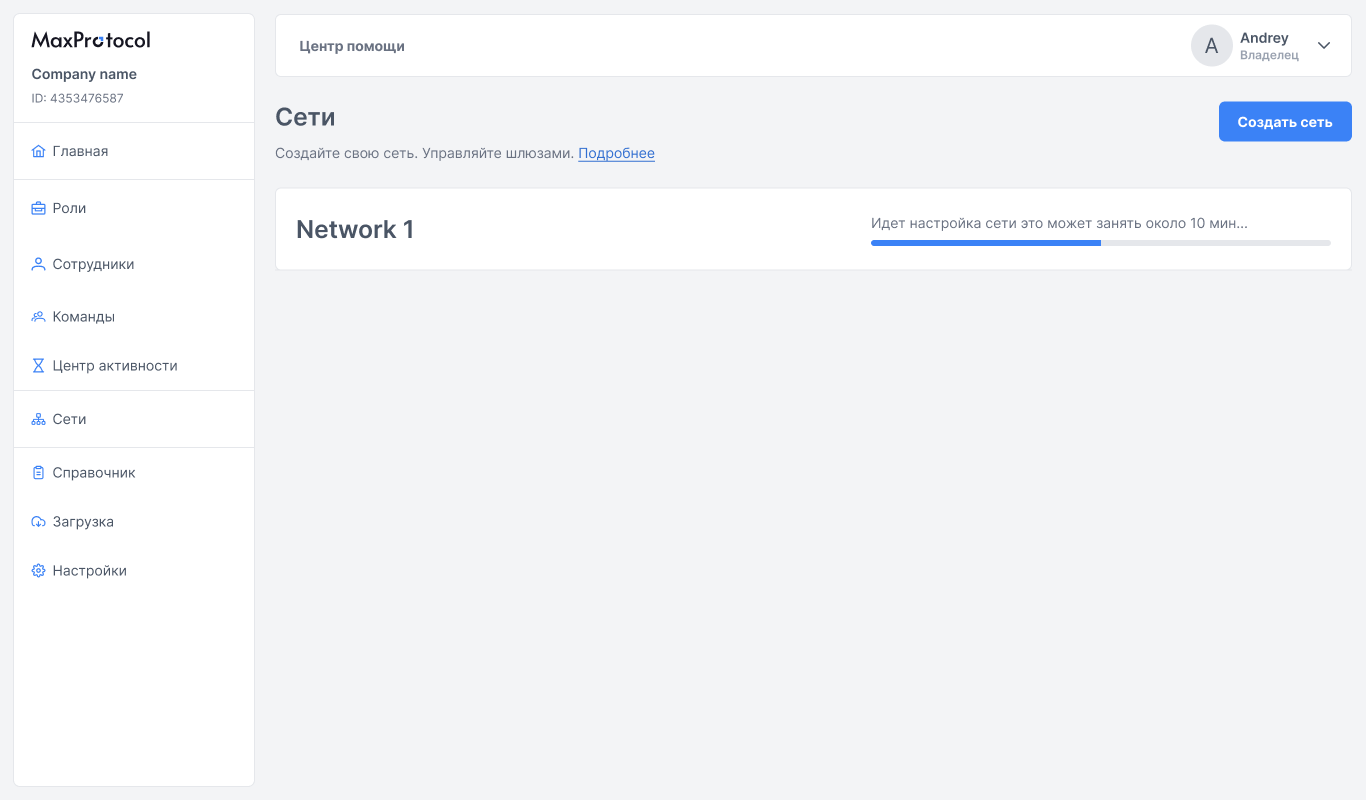
After creation, the network enters Configuring status. This takes about 10 minutes.
INFO
You can close the page during configuration. Once complete, the network status will automatically change to Active.
Network Page
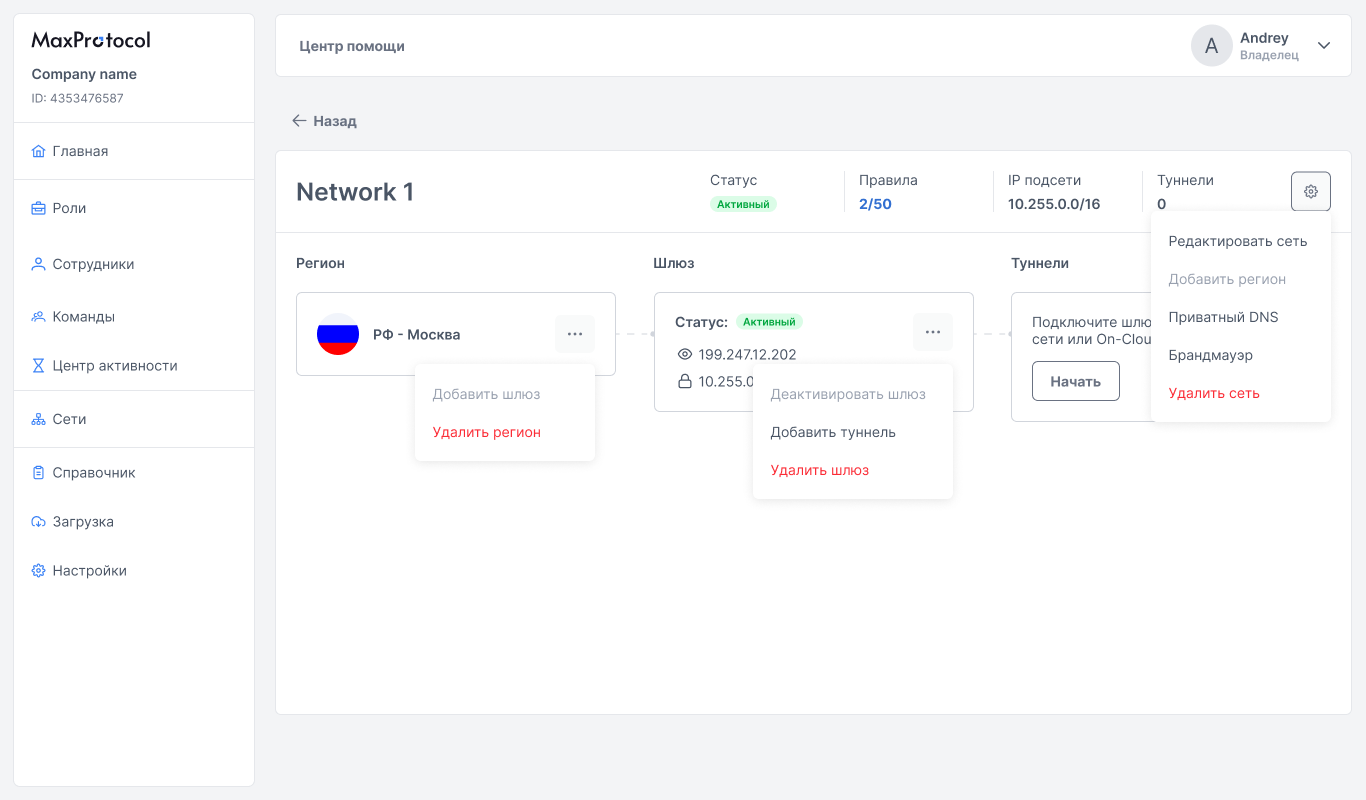
The detailed network page shows the network structure: Region → Gateway → Tunnels.
Network Parameters
The top section shows a summary:
| Parameter | Description |
|---|---|
| Status | Network state: Active, Configuring |
| Rules | Active firewall rules (e.g., 2/50) |
| IP Subnet | Current network subnet with mask (e.g., 10.255.0.0/16) |
| Tunnels | Established tunnels in the network |
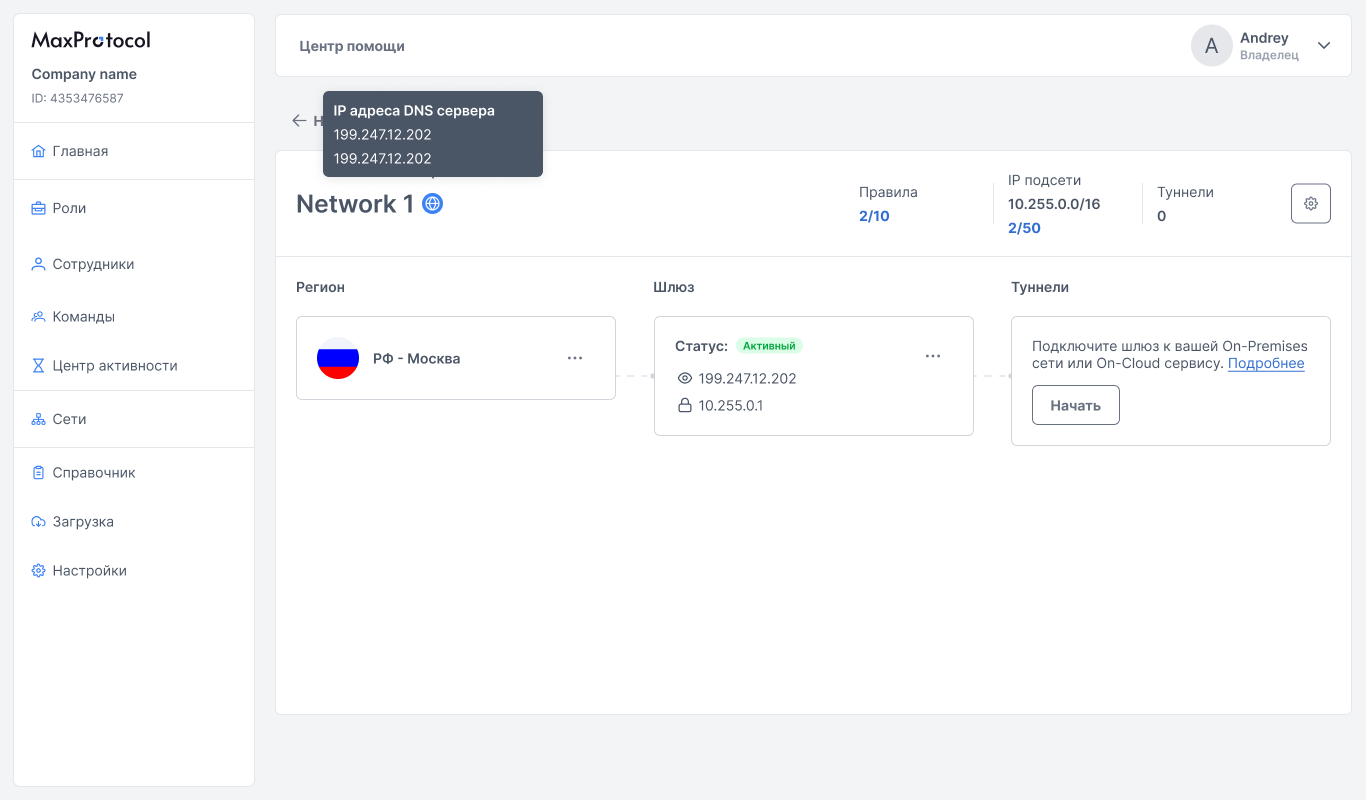
If Private DNS is enabled for the network, a globe icon appears next to the network name. Hovering over it shows the DNS server IP addresses.
Network Settings Menu
The settings button in the top-right corner of the network page opens the menu:
- Edit network — change network parameters
- Add region — add a deployment region
- Private DNS — configure Private DNS for the network
- Firewall — manage traffic rules
- Delete network — start the network deletion process
Editing a Network
The Edit Network form allows you to change:
- Network name — name for identification
- Subnet — internal network IP range (display only, not editable after creation)
- Assign a team or employee — select from the dropdown list
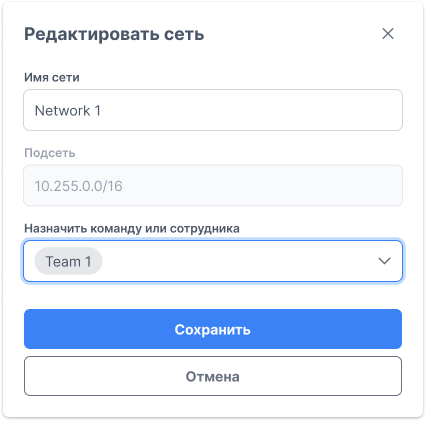
After making changes, click Save.