
Create a Network
In MaxProtocol, each network is an isolated virtual environment with its own subnet, regions, and gateways. A network can be created by a user with the Owner or Administrator role.
How to Create a Network
- Go to the Networks section in the sidebar.
- Click the Create Network button in the top-right corner.
- Fill in the form and click Create Network.
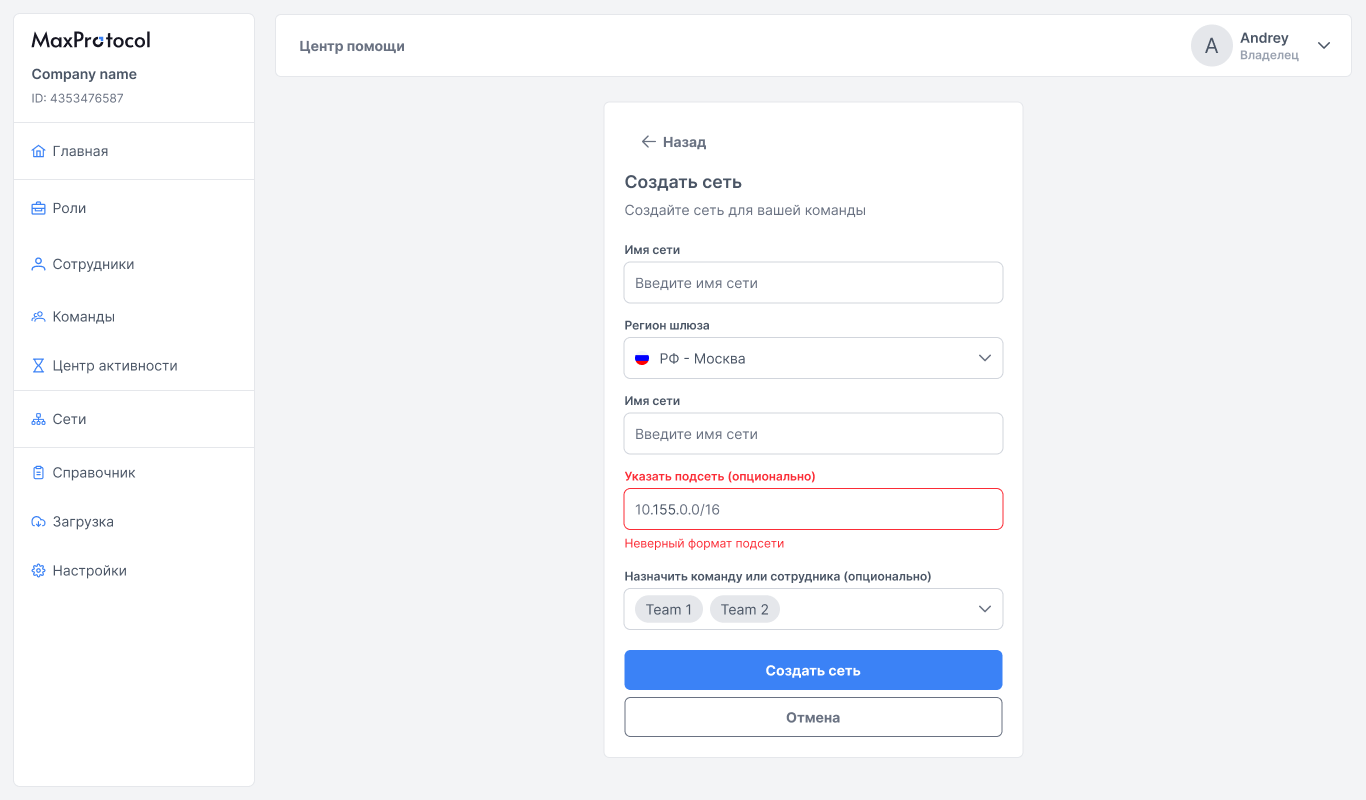
Form Fields
Network Name
Enter a descriptive name for the network. The name is used for identification in the interface and is visible to all members with network access.
TIP
Use names that reflect the network's purpose — for example: Office Moscow, Dev Network.
Gateway Region
Select the region where the first gateway will be deployed. The region determines the geographic location of the node. Additional regions can be added after the network is created.
Available regions (example):
- Russia — Moscow
- Russia — Saint Petersburg
Specify Subnet (optional)
Set the IP range in CIDR format for the network's internal address space (e.g., 10.133.0.0/16).
WARNING
By default, the subnet field only allows specifying the second segment (octet) of the address 10.XXX.0.0/16.
If left empty, the subnet will be automatically selected as 10.255.0.0/16. The subnet cannot be changed after creation.
Assign a Team or Employee (optional)
Select one or more teams or individual employees who will gain access to the network. The assignment can be changed later via Edit Network.
After Creation
After clicking Create Network, the system begins deploying the infrastructure. The network enters Configuring status — the process takes about 10 minutes.
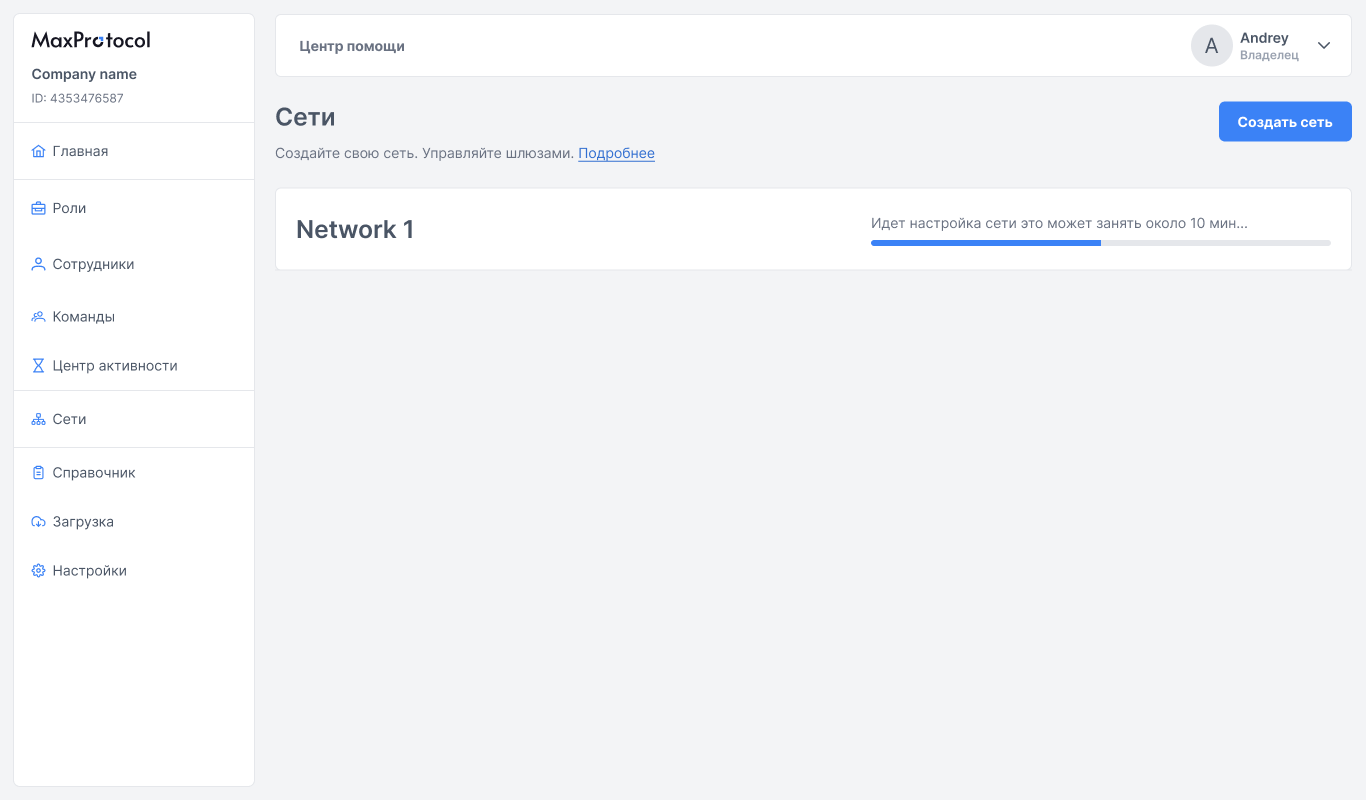
Once complete, the status will change to Active and the network page with regions and gateways will become available.
Next Steps
After creating the network:
- Add a gateway to the region — to enable tunnel connections
- Create a tunnel via a connector — to connect resources
- Configure the firewall — to manage access