
Firewall
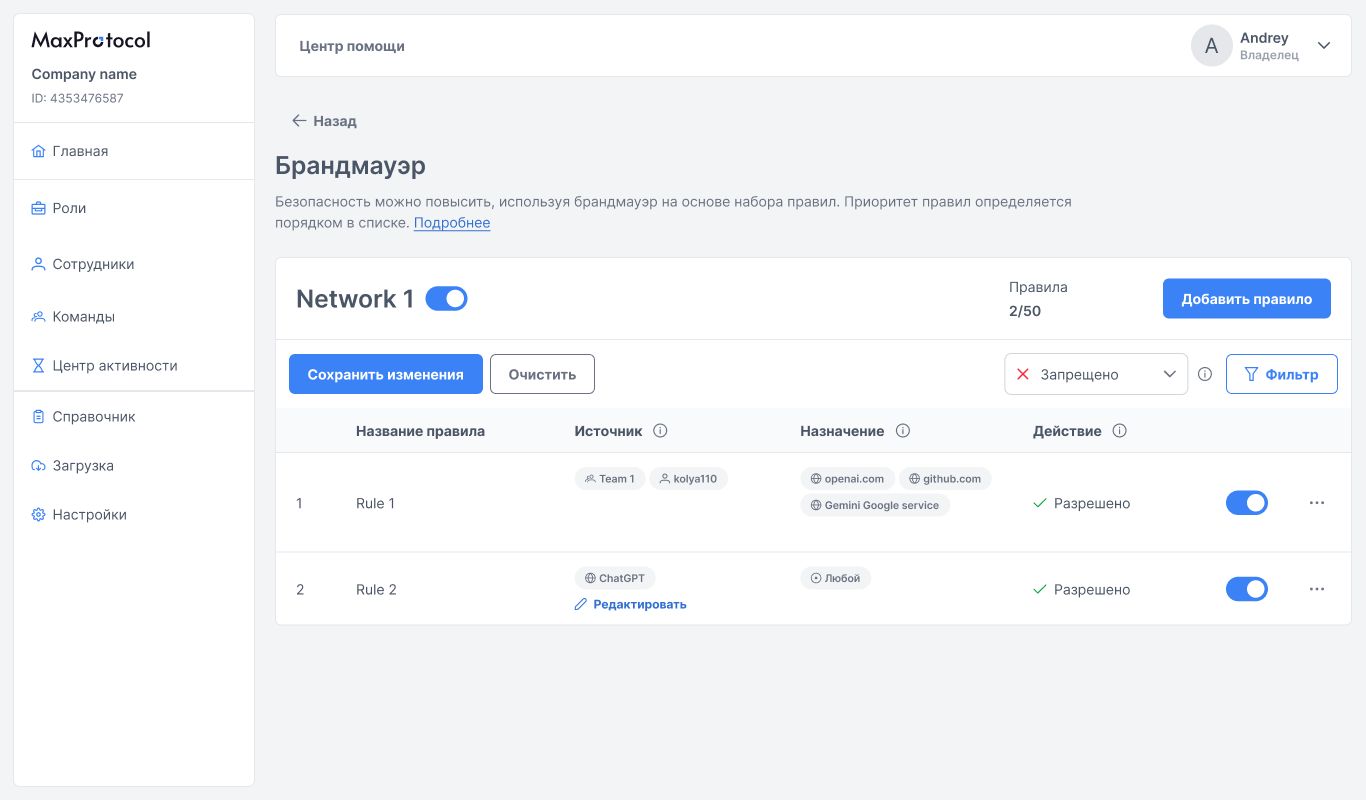
The Firewall allows you to manage traffic in a MaxProtocol network through a set of rules that define which sources have access to which destinations. Rule priority is determined by their order in the list — rules are applied top to bottom.
Opening the Firewall
The firewall can be accessed in two ways:
- From the settings menu on the network page → Firewall
- From the context menu
⋯in the network list → Firewall
Firewall Page
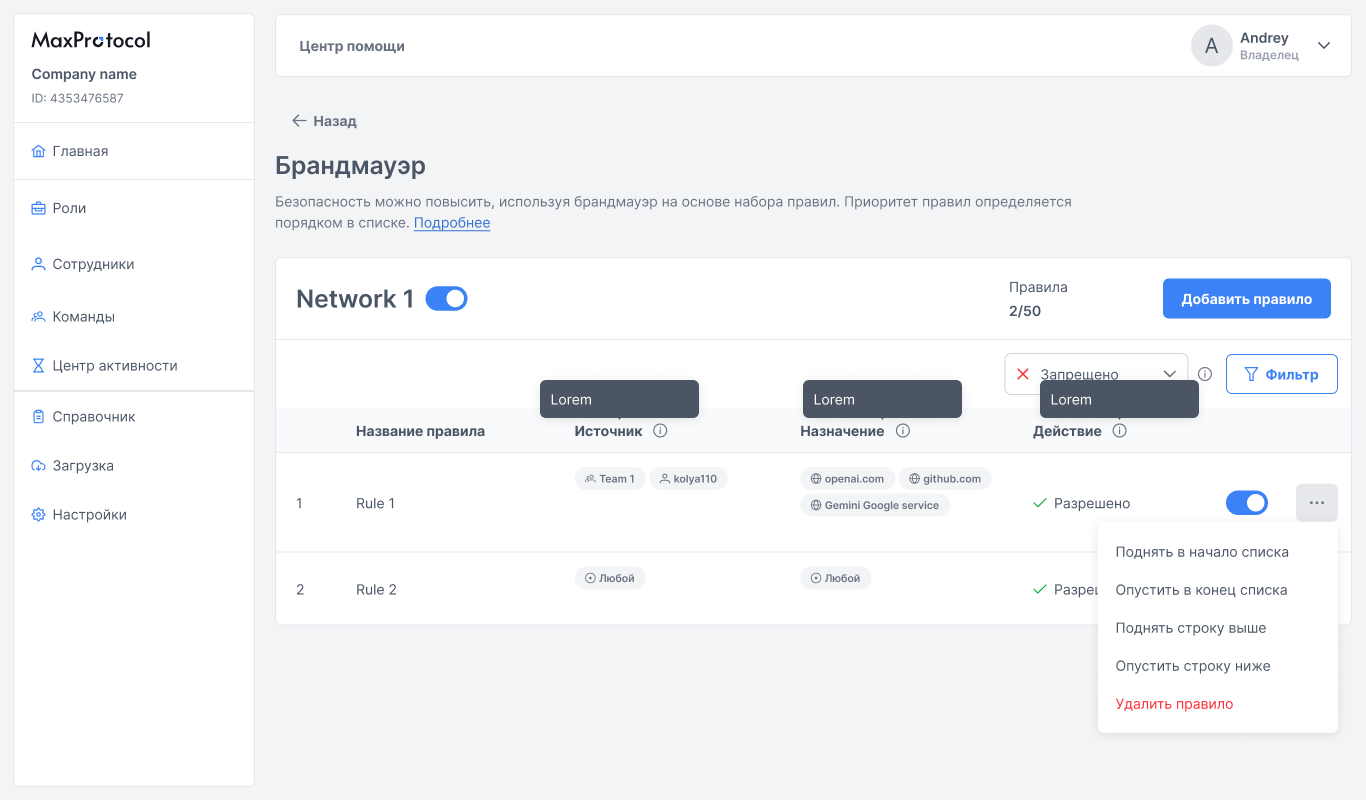
The top of the page shows:
- Network name and a toggle to enable/disable the firewall
- Rule counter — current and maximum allowed number of rules (e.g.,
2/50) - Add Rule button
Rules Table
| Column | Description |
|---|---|
| # | Sequential number — determines priority |
| Rule name | Name for rule identification |
| Source | Where traffic comes from (team, user, or resource) |
| Destination | Where traffic is directed (resource from the directory) |
| Action | Allow or Deny |
The toggle in the rule row enables or disables an individual rule without deleting it.
Adding a Rule
- Click Add Rule — a new editable row will appear in the table.
- Enter a Rule name.
- Click the Source field — a dialog for selecting a team or employee will open.
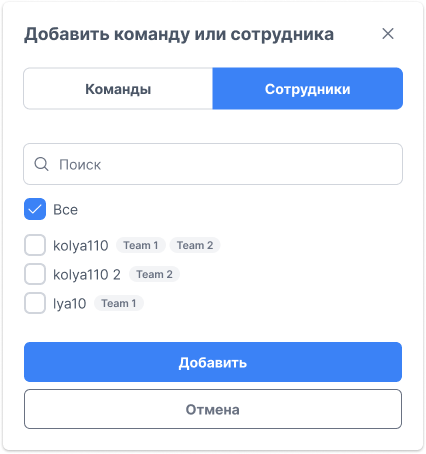
- Click the Destination field — a dialog for selecting a resource will open.
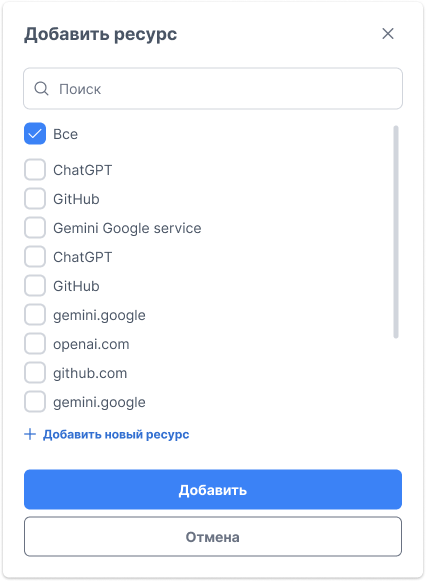
- If the required resource is not in the list, click + Add New Resource and fill in the form.
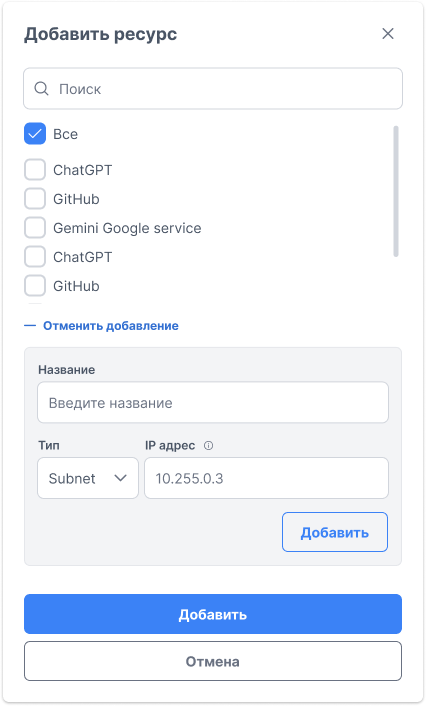
| Field | Description |
|---|---|
| Name | Resource name for display in the rule |
| Type | Subnet — IP subnet or individual address |
| IP address | Address or CIDR range of the resource |
- Select the Action:
AlloworDeny. - Click Save Changes.
TIP
Rules are applied top to bottom. Place more specific rules higher in the list — they will be processed first.
Editing a Rule
Click the Source or Destination field in an existing rule row to change its value. Save Changes and Clear buttons will appear.
Changing Rule Order
The context menu ⋯ in the rule row allows you to manage its priority:
- Move to top — move the rule to the first position
- Move to bottom — move the rule to the last position
- Move up — move one position up
- Move down — move one position down
- Delete rule — remove the rule from the list
Applying Changes
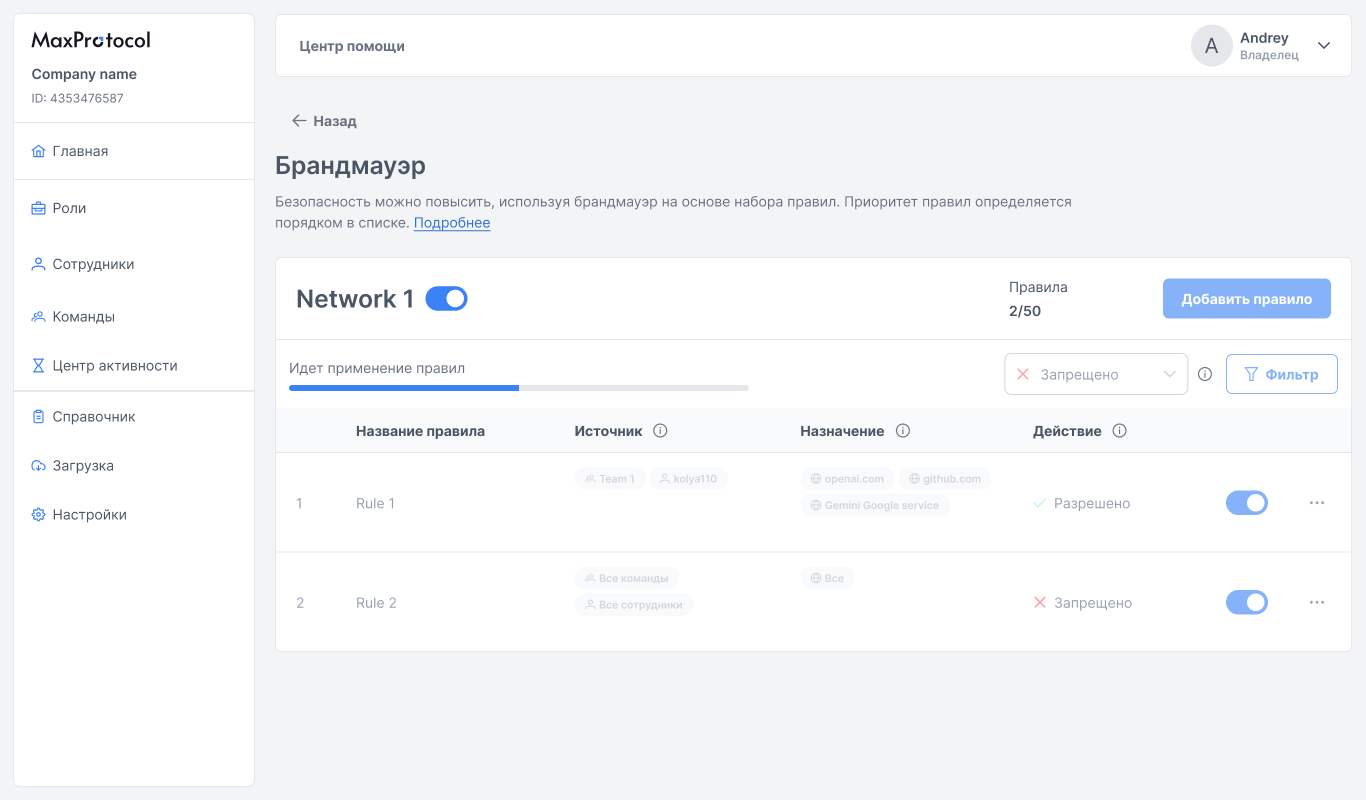
After saving rules, the system applies them to the network — a "Applying rules" progress bar is displayed. The table enters read-only mode during this time.
Sources and Destinations
Rules can use:
- Teams — groups of employees (e.g.,
Team 1,Development) - Employees — individual users (e.g.,
John Smith) - Resources — entries from the Directory: domains (
google.com,github.local), IP addresses, subnets