
Private DNS
Private DNS allows you to configure your own DNS servers for resolving internal domain names within the MaxProtocol network. Requests for the specified domains are directed to your DNS server before falling back to public DNS.
Why Private DNS is Needed
By default, devices on the network use public DNS servers. If your infrastructure has internal domains (e.g., gitlab.internal, app.company.local), they won't resolve without your own DNS server.
Private DNS solves this: requests for the specified domains go to your server, and all others go to public DNS.
Configuration
The Private DNS form can be opened in two ways:
- From the gear menu on the network page → Private DNS
- From the context menu
⋯in the network list → Private DNS
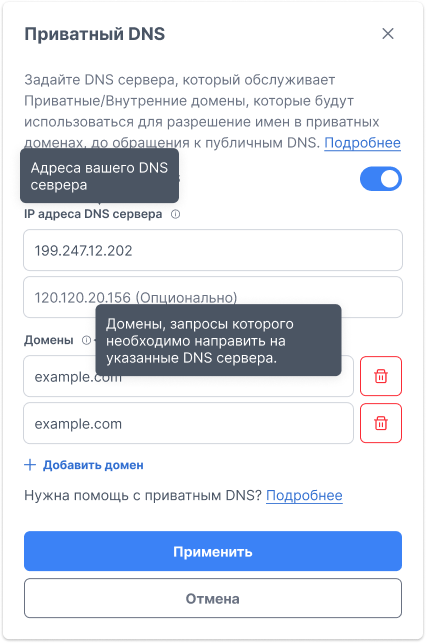
Form Fields
Your DNS Server Addresses
The toggle in the top-right corner of the form enables or disables Private DNS for the network.
DNS server IP addresses — enter one or two IP addresses of your DNS servers:
- Primary server (required)
- Backup server (optional)
TIP
Specify two DNS servers for fault tolerance. If the primary server is unavailable, requests will fall back to the backup server.
Domains
A list of domains whose requests should be directed to the specified DNS servers. Requests for all other domains will continue going through public DNS.
Example:
example.com— all subdomains*.example.comare also coveredgitlab.internalapp.company.local
Click + Add Domain to add a new entry. The trash icon button removes a domain from the list.
Saving
Click Apply to save the settings. Changes apply to all gateways in the network.
Active DNS Indicator
When Private DNS is enabled, a globe icon appears next to the network name on the network page. Hovering over it shows a tooltip with the configured DNS server IP addresses.
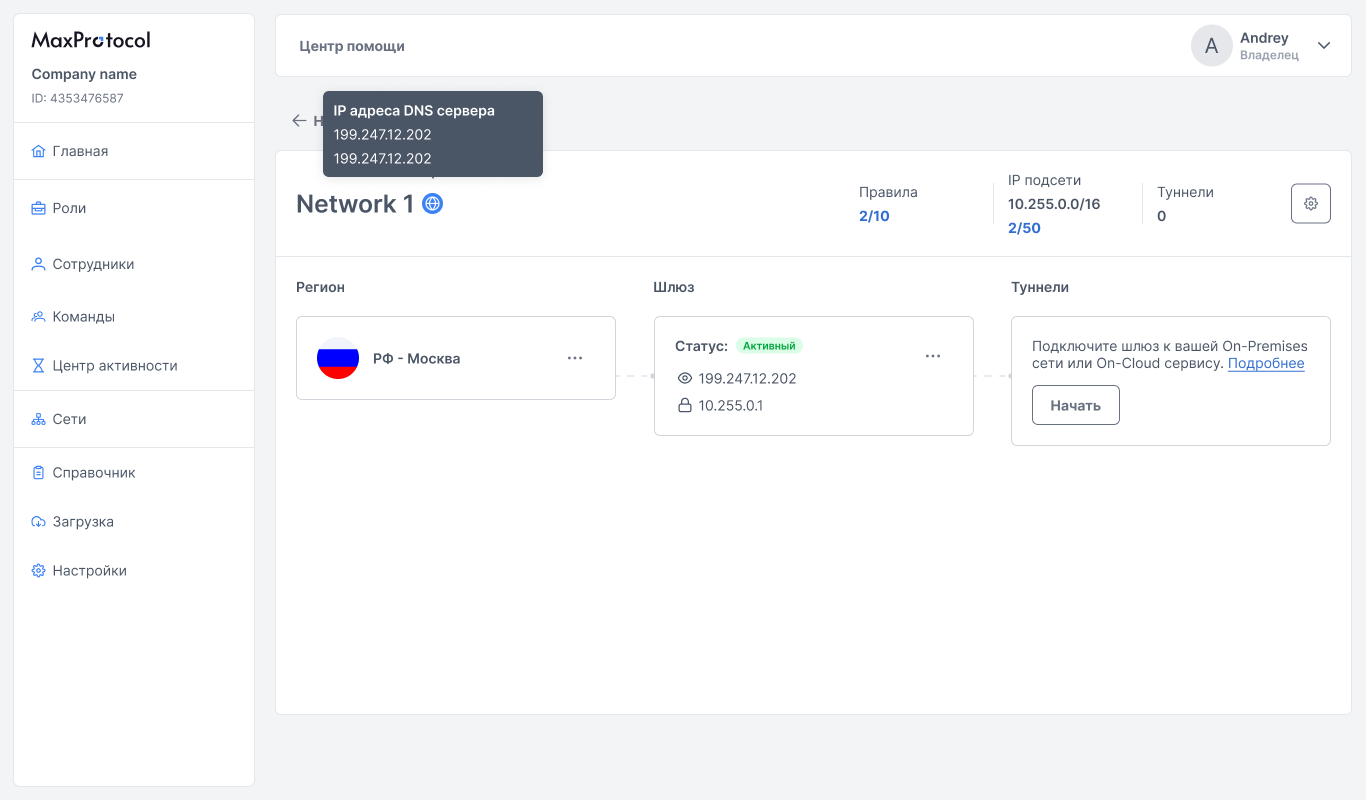
INFO
The globe icon is only shown when the toggle in the Private DNS form is enabled. Saved addresses with the toggle disabled are not applied.
Disabling
To disable Private DNS, open the form and switch the Your DNS server addresses toggle to the off position. Click Apply. The globe icon will disappear, and all DNS requests will return to public servers.